
Hopefully by now you have the first three tips that I shared last week down.
- Ctrl f (in most application and generally speaking most websites this combination will present a search box)
- Window key and start typing (this will search anything present in Windows 8 including all installed software)
- / (in Google Drive online clicking / will automatically place your cursor in the search box)
4. Search text within PDF’s and Images (Use # 3 above (/) and start typing to search for text within the first 100 pages of any PDF or text document w/i Google drive (or the first 10 pages of any image PDF))

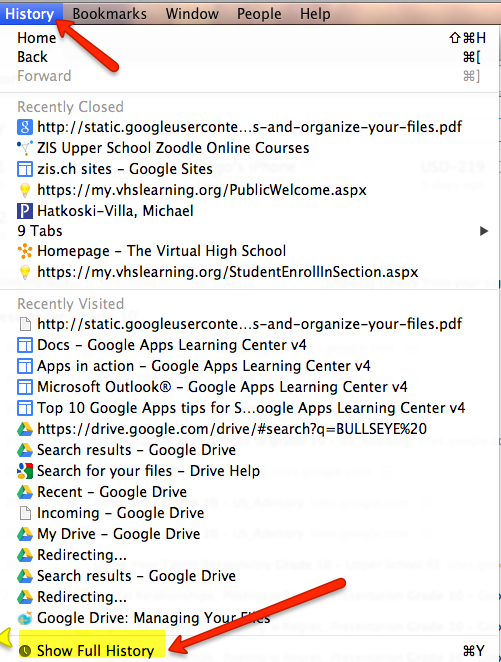
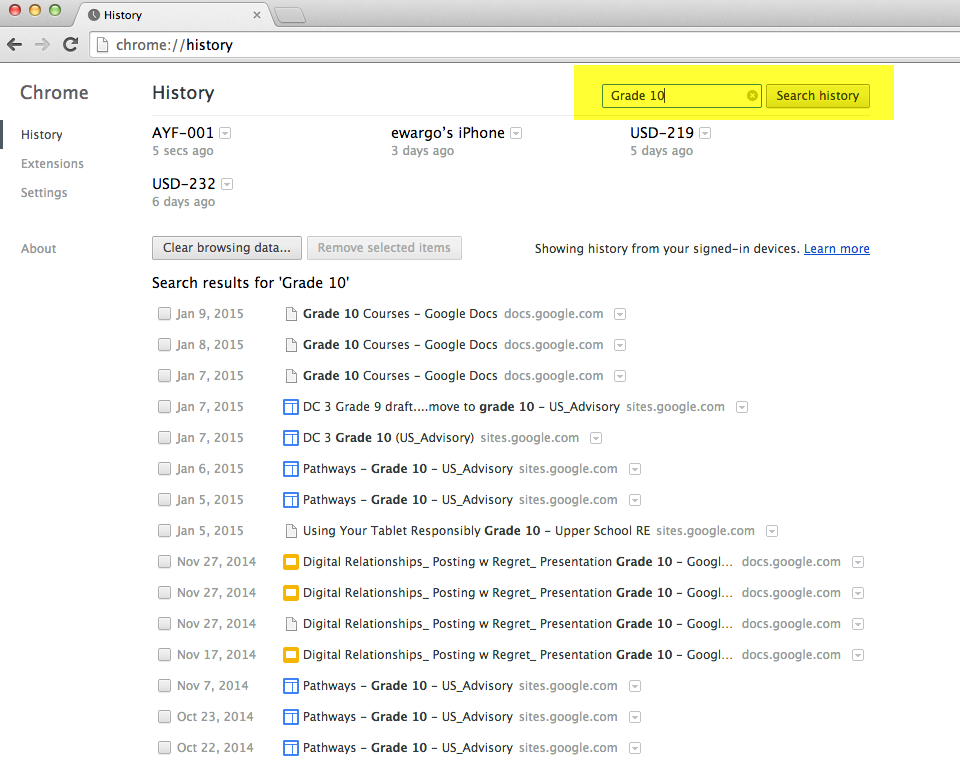
5. Chrome Search History (Search w/i your Chrome history for quick access to past online work.) For example I know I need to access something related to Grade 10 that I worked on yesterday. I would follow these steps:
– Open Chrome and click on History at the top
-Click Show Full History to view all search history by device or to search within
–
 Tech Tuesday