Now that we are into the seventh week of school, it’s time to ask…. how is your digital organization holding up? Below is a quick check list to help you gage your progress towards having a workflow that allows you to sustainability manage your IT use, especially with Classroom. Once you complete the audit you will see links to direct you to areas perhaps you could revisit:)
File Storage
Are you Device Independent?
Standard

By now you should know that you can work with Google Drive in two places on any device (the cloud and the desktop/within app downloaded) and have supported students in advisory to do so during the recent road checks. To keep with our Upper School edtech goal of streamlining communication we are holding a contest.
The first five faculty/staff members to show Alison, Liz or Mike zero Google drive items synced down to their yoga and at least 20GB free on their C disk will be awarded prizes.

4 Things You Can Do NOW to Organize Your Google Drive
StandardAll of us organize our Google Drive a bit differently, however there are four simple methods we can embrace to make our Drives easier to navigate.
- Clean, Clear Folder Structure:
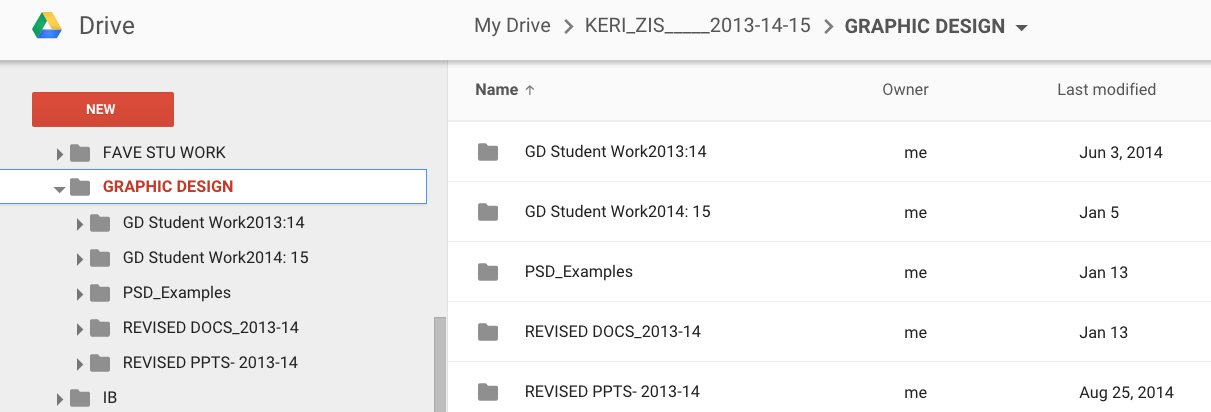
*This facet of organization is very specific to each individual. Here are three very different examples of how faculty members approach folder structures:The first example showcases a topic as the top level folder. Subfolders are then broken down into specific type of resources: (1) student work, and (2) teacher “work” broken down by file type (docs, slides and in this teachers case a specific software used for this course).

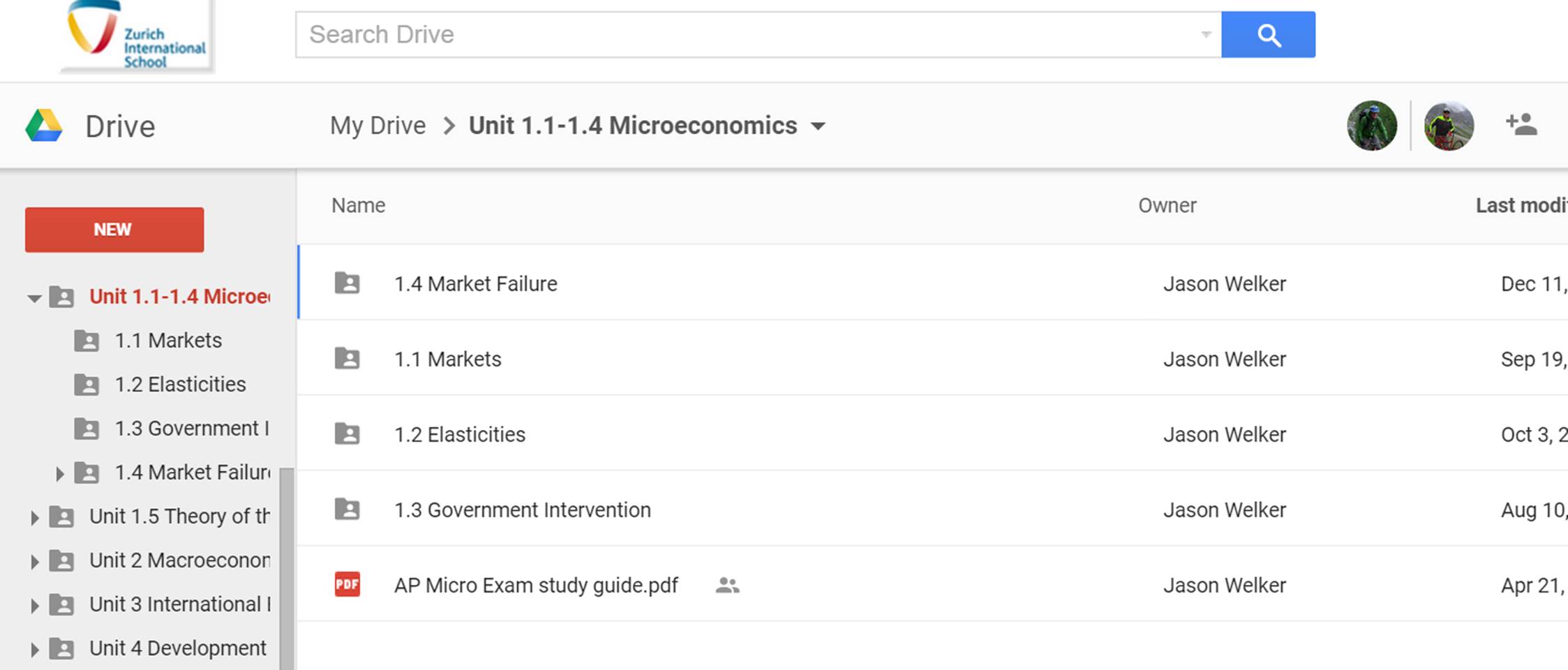
The second example showcases the use of numbers associated with units. This method also allows you to order items when Googles alphabetized method is working against you:
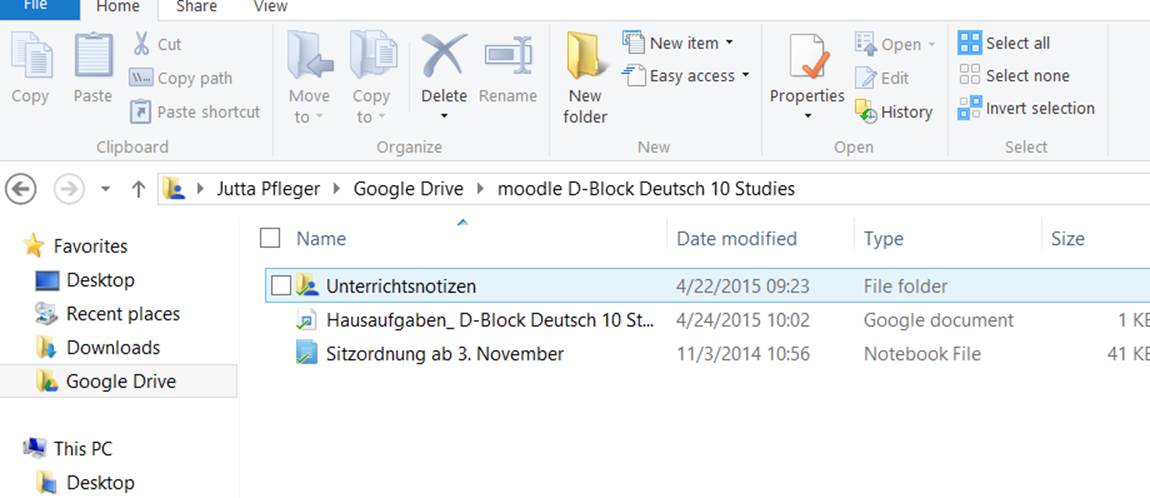
 The third example showcases the power of a folder structure that embraces top level folders that are shared with students. This individual has clearly structured top level folders for each class to share work with students in an organized fashion. In addition, clearly labeling folders with the word Moodle let’s both the student and teacher know that the folder structure is linked into their Moodle course.



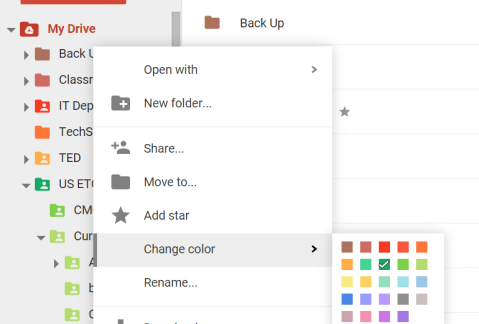
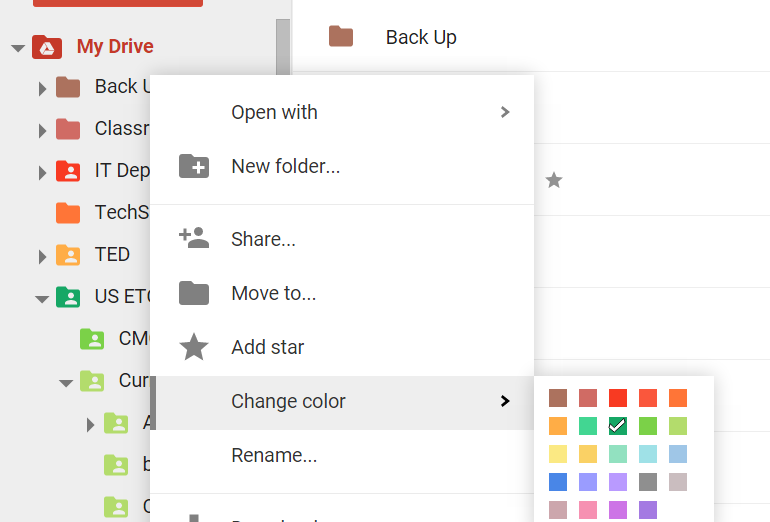
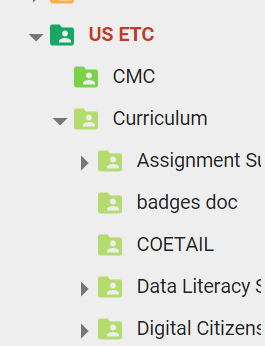
2. Use different colors to quickly distinguish folders from each other.

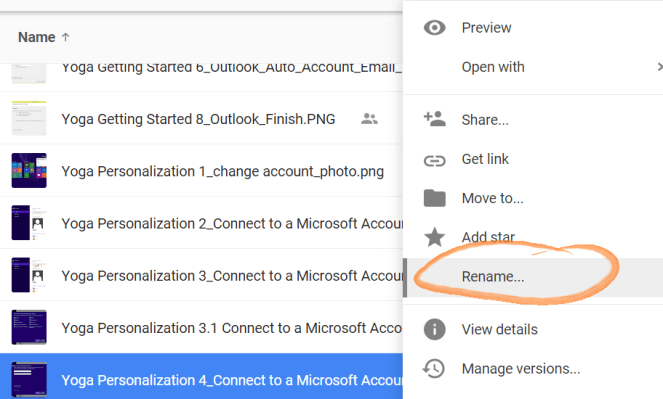
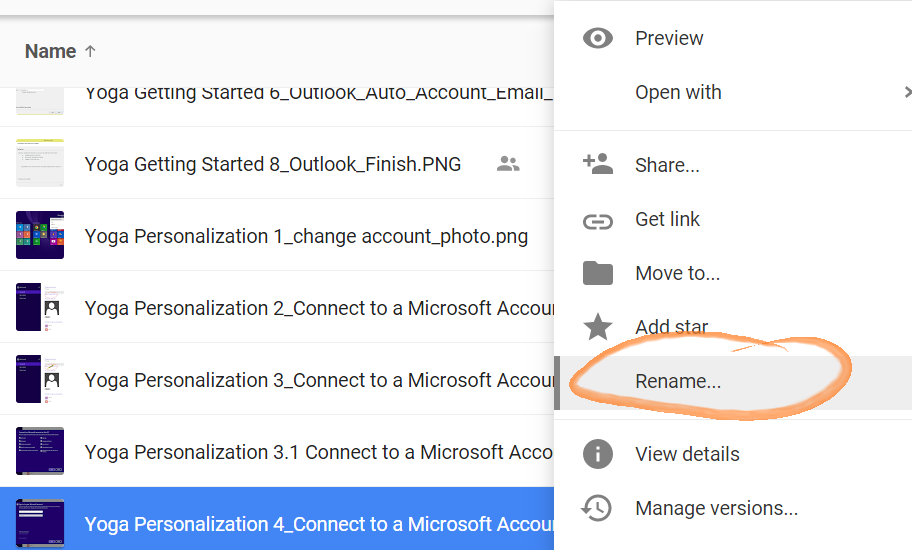
3. Standardize your naming conventions and embrace numbers to best view items sequentially.

4. Organize items shared with you
Items shared with you can be difficult to locate because these items are not automatically added to your My Drive folder. Using the Add to My Drive function allows you to organize items shared with you. If the naming conventions of the items shared with you conflict with your own approach to organization consider creating a folder that does and adding the shared file to this folder.

Gr. 9-10 Road Check
StandardThanks for your help completing tablet road checks during consultancy this week and next. If you have an specific questions or would like help let Liz know.
*Grade 11 and 12 road check will happen before February break.
End of Year Wrap Up
StandardMoodle and Classwork Changes
Last week’s Moodle upgrade and Classwork changes mark the end of the changes in our Upper School digital ecosystem for this school year. Next year sessions will be run to support the changes in Moodle, however just like your Yoga, it’s a good idea to “play” before you have to use it.
*If you wish to access the old Moodle you may do so until the end of September here.
Reminder x220 Tablet Return
Friday (this week!) is the deadline for x220 return.
Review of Innovative Learning Forum

Sign into the Faculty/Staff MY ZIS Portal to access the latest info shared on the forum.
Tips Shared:
-How to add your schedule as your desktop background (thanks Michelle H).
-Creating an eraser on the end of the stylus (thanks Ali C).
-Outlook weather forecast in Celsius (thanks Esther d).
-Do we need a Microsoft account? Answered:) (thanks Diya and Mark D.)
-Accents (thanks Esther d and Elizabeth K)
-Password request on wake up (thanks Will S and Alison W)
Outstanding questions…please reply if you have found a solution:
-Pen pressure sensitivity
Digital Spring Cleaning
StandardAs you get ready to transition devices, the less you have to think about the better! Here is a suggestion list of areas you might want to look at:
- Classwork- *especially the Special Projects folder
- Tablet- Desktop Downloads, My Documents, My Pictures, My Music, and My Videos folders
- OneNote *more information about how to back up your OneNote will be in next weeks announcements
- iTunes library items
Other items worth considering cleaning up:
- Google Drive
- Digital Portfolio- archive and adjust categories
- Internet browser- bookmarks and extensions
- Unused apps on your SMART phone
- Social networks- unlike and unfollow to clear your feeds
Navigating the Digital Side of Life
StandardAs the semester quickly comes to an end it’s time to reflect on all the Upper School experiences that have enhanced our level of digital citizenship. Thanks for your attention and efforts towards improving your digital knowledge and skills!
 UbU: Digital identity and privacy including dips into the following topics: UbU: Digital identity and privacy including dips into the following topics:
Cyberbullying Digital footprint and reputation Internet safety Privacy and security |
 GYST: Digital organization and information management GYST: Digital organization and information management
Setting up your browser and Google drive Google school 101
Zoodle organization including a digital homework “agenda”
|
Digital scavenger
|

Next semester we will focus on activities to get us ready for our next device.
Simply Dealing w/ Video Assignments
StandardPlease avoid classwork at all costs when dealing with video files. Below are two recommended ways to share/submit videos that allow for instant play w/o downloading.
- Via a direct link (eg an .avi file in Google drive, or a link to the video on Youtube)
How to make and turn in a video via Google drive - Embedded as a post in their digital portfolio
How to embed a video into a portfolio post
Google School Today
StandardToday’s Google school will cover a quick overview of the similarities and differences between Word and Google docs.
|
Google Docs Only |
Word Only |
|
Easily published to the web |
More fonts, addins (Math symbols) and document formatting features |
|
Documents easily edited by multiple people |
Track changes |
|
Revision history tracked |
Mail merge |
|
Context spell check |
Drawing functionality |
Google School 103 Sort Your Files
Standard
This weeks Google school focus is on sorting and sharing files. In 20 minutes we will cover the following:
- How to sort files (title, size, last modified & last opened)
- How to find a file by narrowing search results
- Organize your files (create a folder on the web, move files to a folder)
- Share a folder
Before this session you should:
Have set up Google Drive
Know what the cloud is (Google School 101)
Understand how to navigate your Drive (Google School 102- Get to know your drive)
 Tech Tuesday