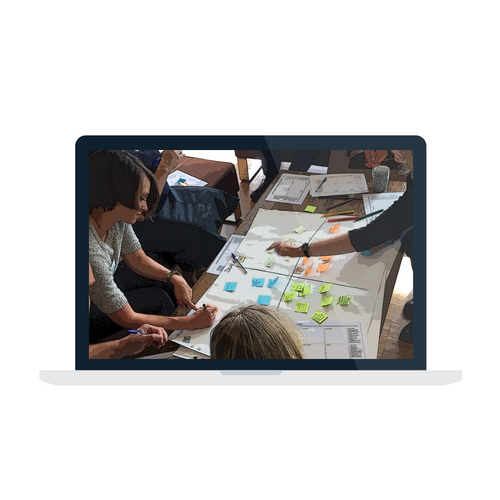
Google Tone is an extension (click here if you need a refresher in what extensions are) that allows you to send students urls, without the need for an email, to any student within earshot. The extension uses sound to transmit the info. It is experimental and does have some limitations, however it’s worth checking out. Below is a screencast on how to use it with your students.
Google Apps
Google Keep
StandardDo you have stickies all over your desktop? Do you see your students with stickies all over their desktops?
Google Keep is an much better alternative to using stickies because:
- Keep notes are accessible via any device (including phones)
- Keep notes can easily be shared with others, making them ideal for group planning
- Keep notes can be time specific with the ability to set reminders and deadlines
I Do Not Like Green Eggs and SPAM
StandardNobody likes SPAM, dealing with it is tricky, and there certainly is a lot of it!

By now you should know:
- Where your messages go in gmail,
- How to find an email using Gmail’s search (*pay particular attention to this video at 1:06 where it explains how to include spam and trash in searches),
- How to block unwanted messages.
- How to access your spam folder and help your Gmail learn what legitimate mail is not spam.
- How to identify a message that is SPAM
Click on the quiz below and see if you can identify all the markers of a spam message.

Because this is different for every individual, please continue to periodically check your spam folder. Check out this resource to learn why certain type of messages end of in your spam folder and what you can do about it.
Three Ways to Enhance Your Google Calendar Experience
StandardBelow are three of many ways your calendar can be in some of the places you need it most:
- Set it as a page that opens automatically in Chrome
- Use the official Google Calendar app on your phone
- *Enable labs calendar window view in Gmail


*Google labs are cool and sometimes very helpful, just remember they are beta and can change/go away at anytime.
Optimize Your Workflow in Gmail
StandardDo you have too many emails in your inbox? Are you experiencing email apnea ? Try the following:
Web Apps and Extensions
StandardWhat are web apps and why you can now do most of the things you need to do through your web browser.
What is an extension?
Now that you know the difference between an app and an extension check out this post, showing you how to add Easybib our newest ZIS sponsored Google add on.
Citation and Research Transformed w/ Easybib
StandardAll students and staff now have access to the upgraded school edition of EasyBib. This program is not a cure all for all of our citing needs, but it may well be a good tool to initiate more conversation around research and citation skills. Currently, we are exploring the program, but feel free to help students sign in right away. The new edition allows students to cite in a variety of citation styles free of charge. -Kevin
This tool can help you transform what Kasman and Boyer (2015) refer to as the “iterative, social, collaborative—and messy” process of inquiry in their article in this months issue of Educational Leadership titled Research Untethered.
Kevin is curating more information that will help you and your students use Easybib on the US Library Moodle site (under the US Other category), but for now here is some basic access information.
There are five main ways to access this tool, all with your normal ZIS username and password: (a) as a Google App, (b) a Google Add on, (c) extension, (d) through mobile device apps, or (e) directly through the easybib.com website.
Please access any one of these first ON CAMPUS to ensure you receive the Pro version.
(a) Google App
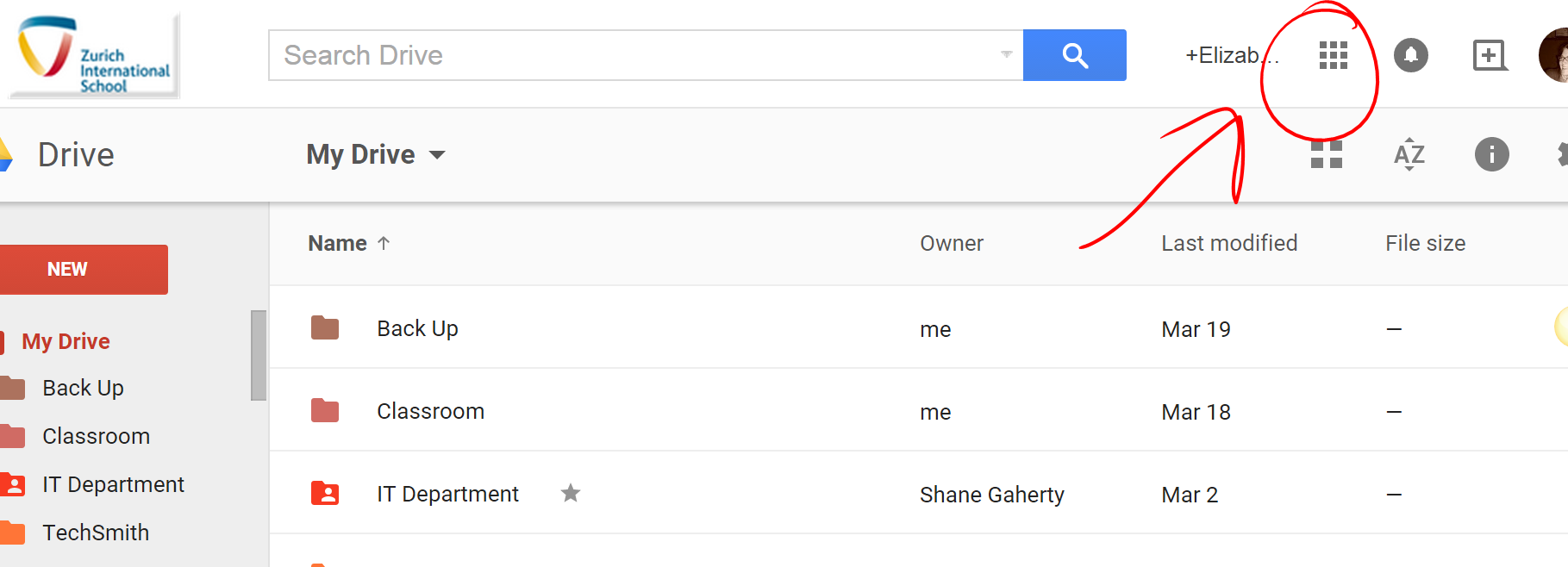
To access this resource sign into your google drive online (no additional sign in necessary for students or faculty) and select the grid icon in the upper right hand corner to view your apps
(b) Add-on w/in Google Docs
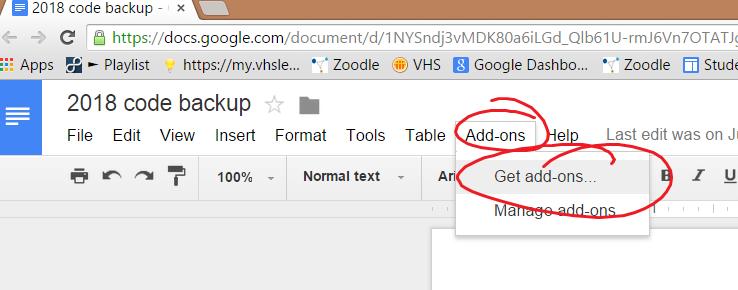
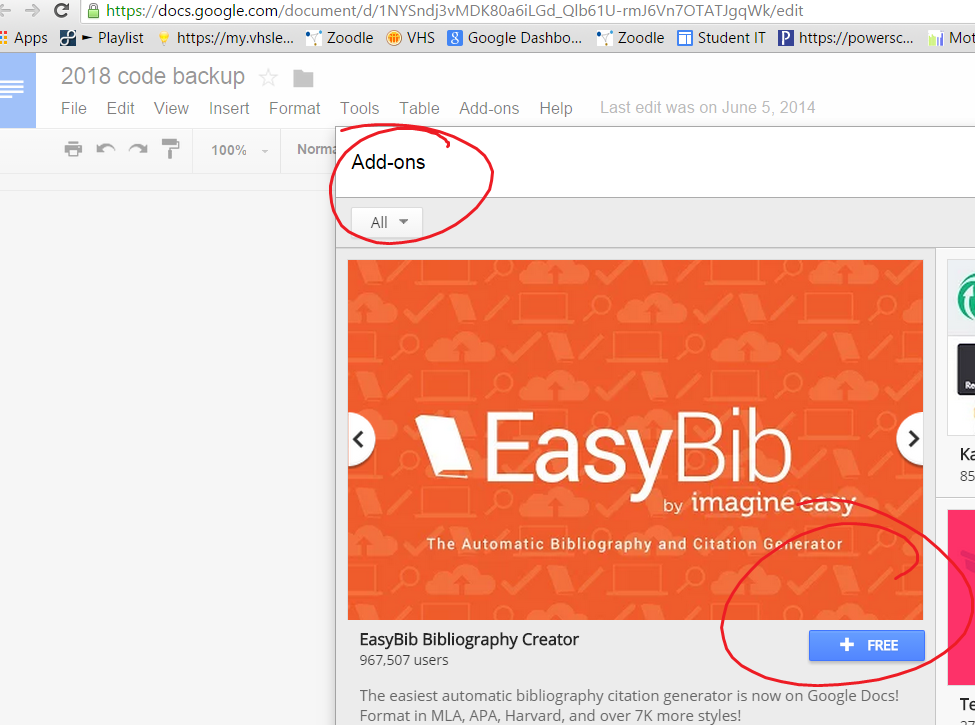
Easybib can also be accessed from within a document by clicking Add-ons too:)
(c) Extension
Get the Easybib extension
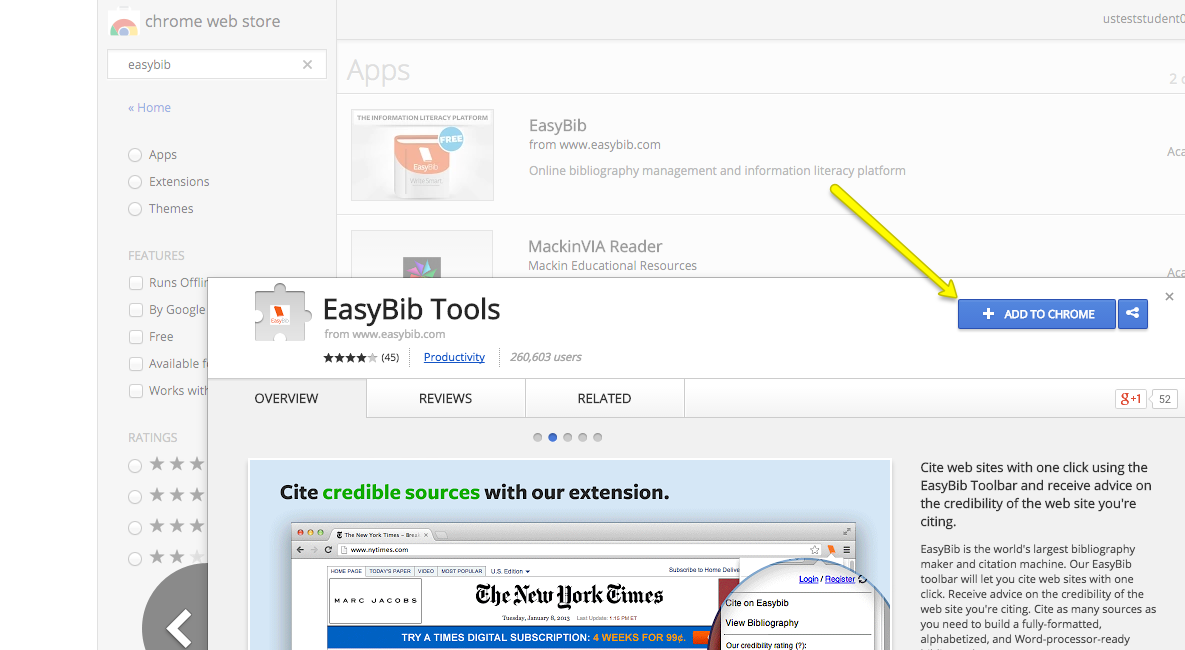
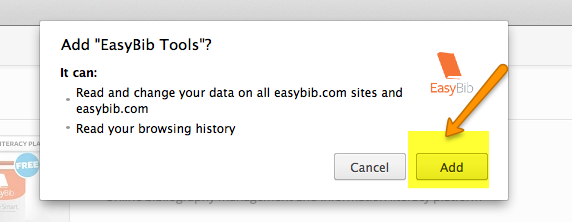
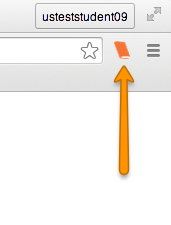
(d) Mobile app
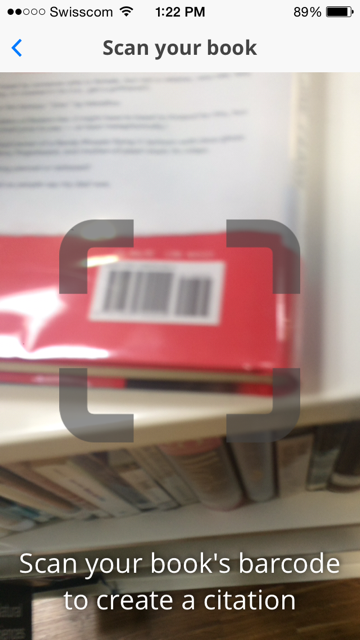
Through mobile devices (iTunes app or Android app) which has added features such as scanning bar codes of books
(e) Easybib.com
4 Things You Can Do NOW to Organize Your Google Drive
StandardAll of us organize our Google Drive a bit differently, however there are four simple methods we can embrace to make our Drives easier to navigate.
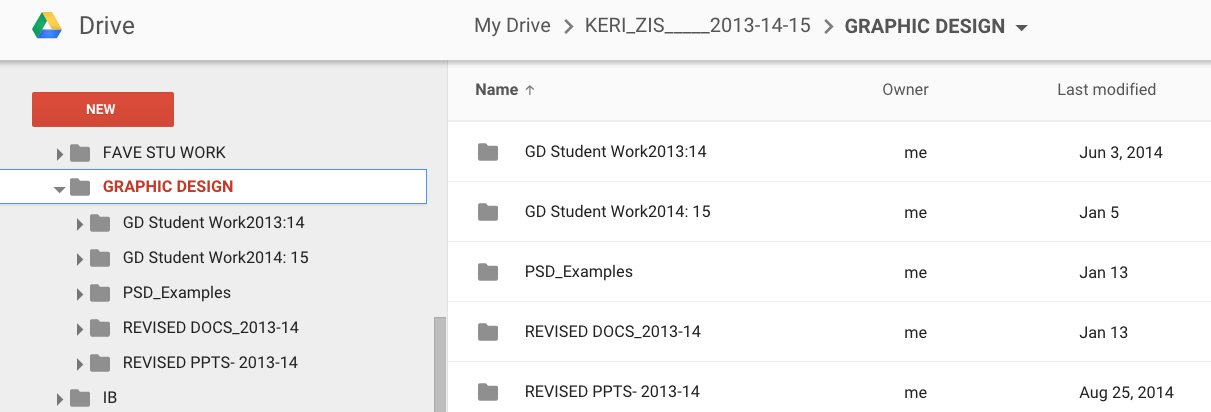
- Clean, Clear Folder Structure:
*This facet of organization is very specific to each individual. Here are three very different examples of how faculty members approach folder structures:The first example showcases a topic as the top level folder. Subfolders are then broken down into specific type of resources: (1) student work, and (2) teacher “work” broken down by file type (docs, slides and in this teachers case a specific software used for this course).

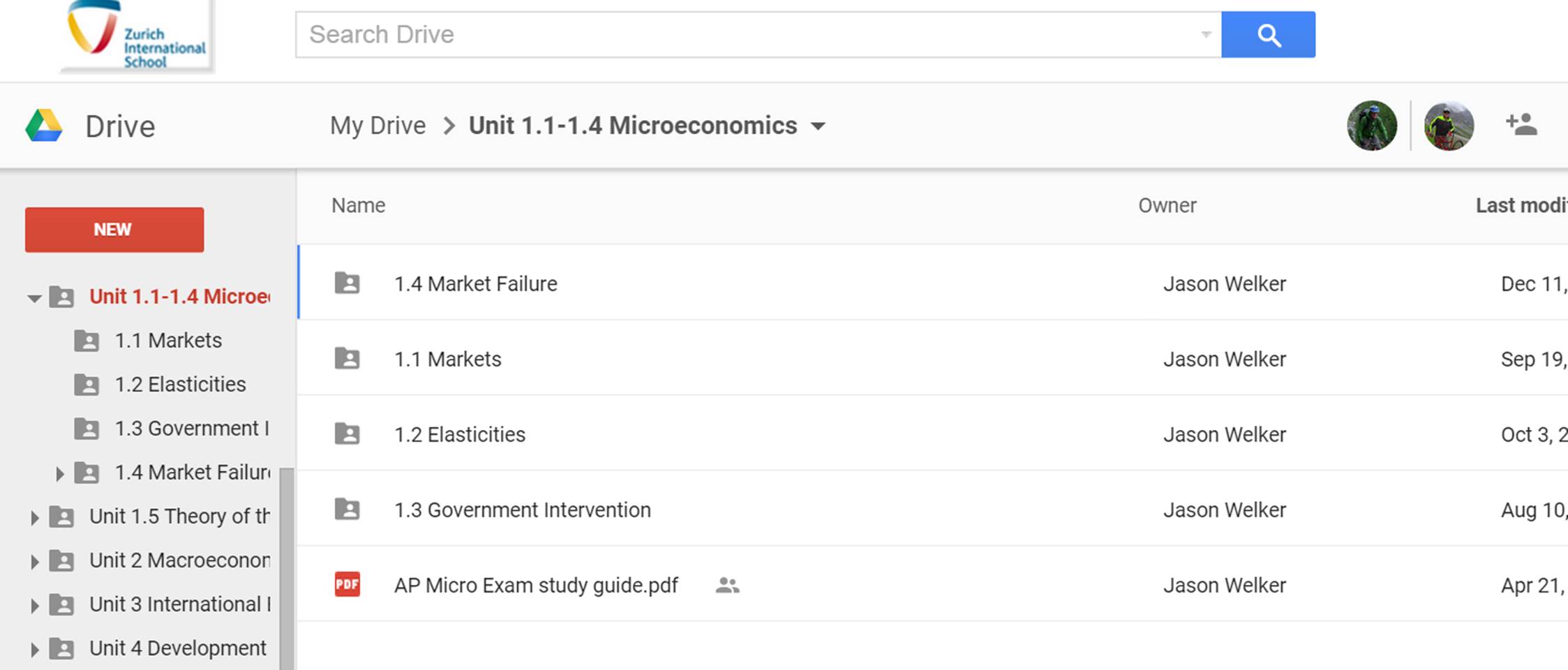
The second example showcases the use of numbers associated with units. This method also allows you to order items when Googles alphabetized method is working against you:
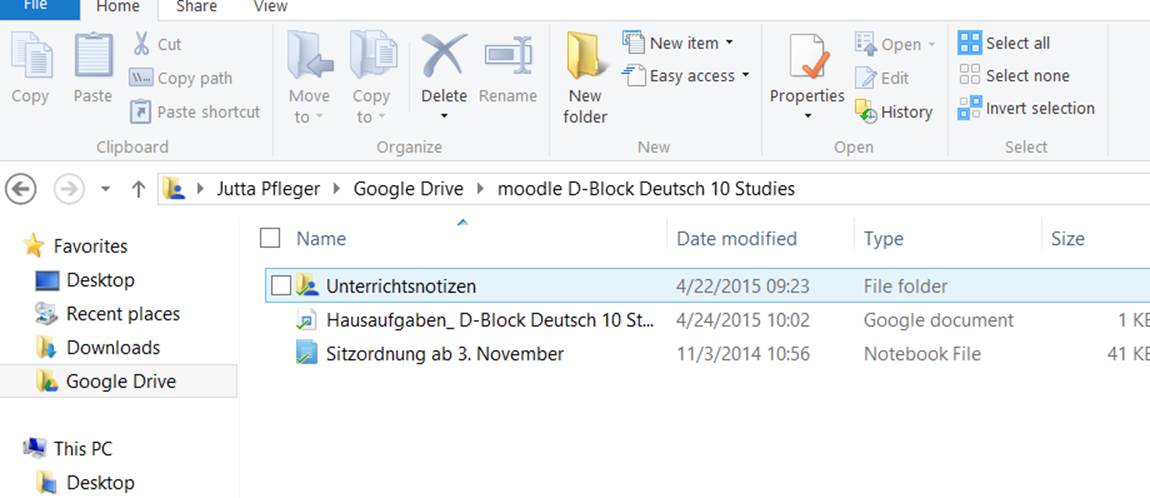
 The third example showcases the power of a folder structure that embraces top level folders that are shared with students. This individual has clearly structured top level folders for each class to share work with students in an organized fashion. In addition, clearly labeling folders with the word Moodle let’s both the student and teacher know that the folder structure is linked into their Moodle course.



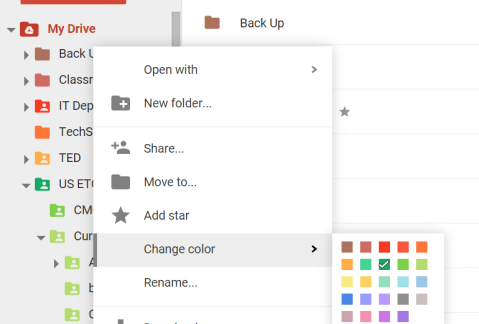
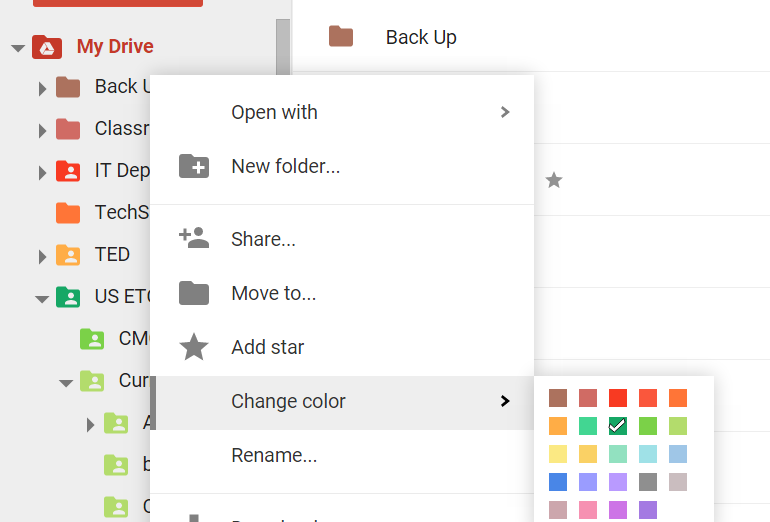
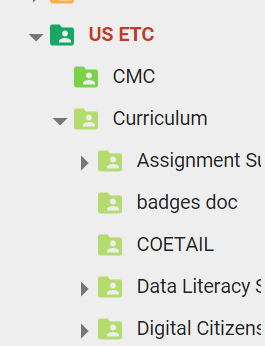
2. Use different colors to quickly distinguish folders from each other.

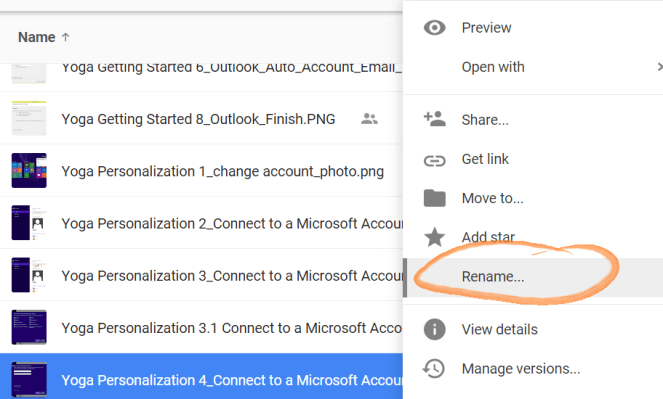
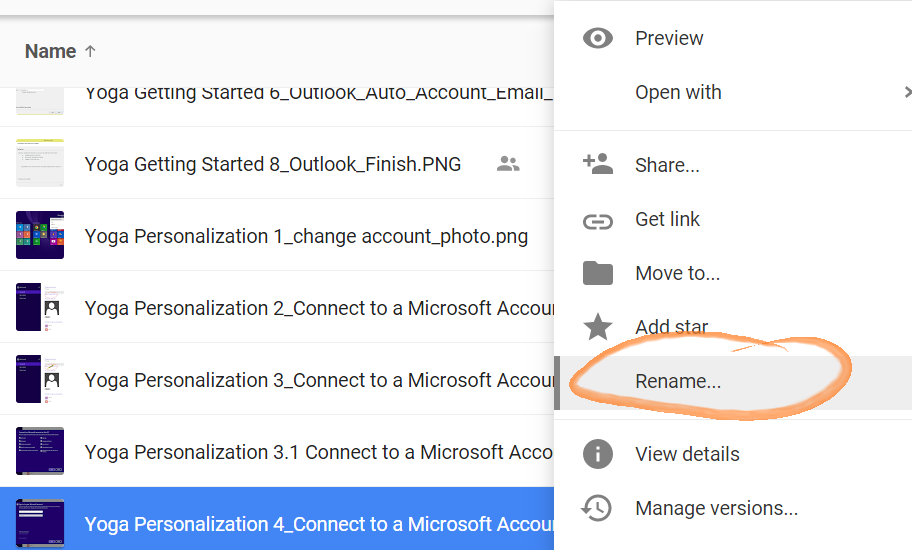
3. Standardize your naming conventions and embrace numbers to best view items sequentially.

4. Organize items shared with you
Items shared with you can be difficult to locate because these items are not automatically added to your My Drive folder. Using the Add to My Drive function allows you to organize items shared with you. If the naming conventions of the items shared with you conflict with your own approach to organization consider creating a folder that does and adding the shared file to this folder.

Leverage Vocab.com
StandardEsther, Mary Ann and our English colleagues are using Vocab.com with students, and you can too!
To access vocab.com, make sure you are signed in to your school Google account (Chrome works best) and go to vocab.com in any of the following three ways:
Through Moodle’s left navigation bar |
Directly in Google Apps
|
Straight through the url vocab.com
|


You can make your own vocabulary lists based on subject specific vocabulary and share them with your students. Talk to Esther, Liz or Ian if you want a brief tutorial, or read the instructions on the website itself.
Student Email Change- Google Drive Sign in
StandardPlease do not forget to check for student understanding around the upcoming student email change, including the need to sign into ZIS Google services with their new account (@zis.ch) after the switch on March 20th.
For more information see this US Announcements blog post.
 Tech Tuesday