Handout Copies of Google Files Easily

Standard

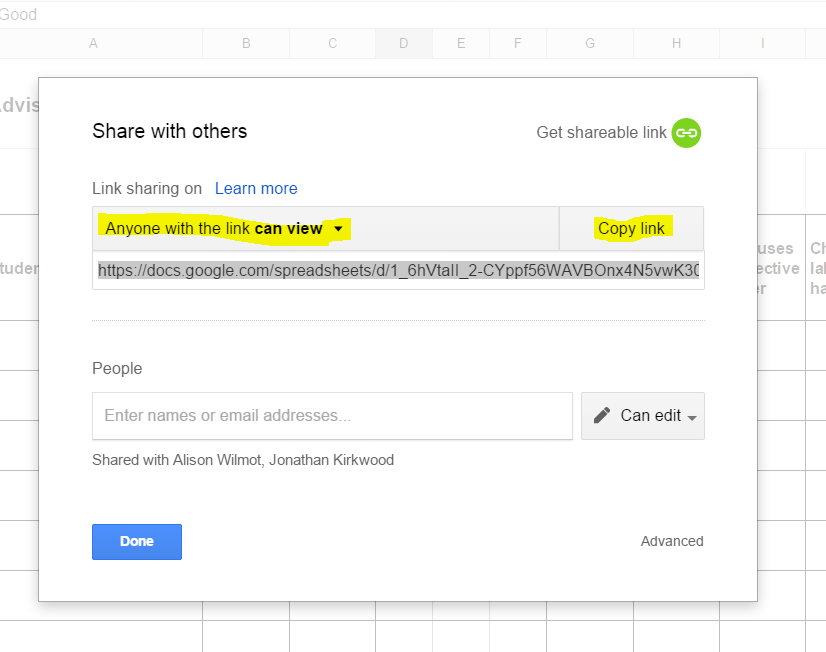
Did you know that you can simply hand out copies of Google files with one link? Here is how:


  1. Create a Google file (doc/sheet/slides/draw)
  2. Click the blue share button and make it visible by anyone with the link
    sharable link
  3. Modify the url (link) by deleting the portion after the backslash (/) https://docs.google.com/spreadsheets/d/1_6hVtaII_2-CYppf56WAVBOnx4N5vwK306n5ovYM-9U/edit?usp=sharing
  4. Replace the deleted text with the word copy
    https://docs.google.com/a/zis.ch/spreadsheet/ccc?key=0AiqrAI5UxSJNdEpaa3FtaFNXOGdUWmQ2RDl5di1mWWc/copy 
  5. Pass out the link and those receiving it will get this prompt to make their own copy
  6. make a new copy

Digitally Efficient Ways to Check for Understanding

Standard

Interactive writing is one of the elements listed on Wes Fryer’s digital media creation grid I shared last week.  At ZIS Upper School some of our most efficient digital tools for interactive writing are:

  • Student digital portfolios
  • Google apps (docs, spreadsheets, presentations, etc) shared as anyone with the link can edit
  • Moodle discussion forums
  • Padlet walls

Screen Shot 2014-11-11 at 9.57.31 AM

These are all great digital tools, but in an of themselves they do not get at what’s needed most, quick, appropriate, timely feedback!  However, pair one of these digital tools with the right method for checking for understanding, and you and your students are on the road to formative assessment bliss.  I use the word bliss purposefully, because what most teachers and students want to avoid at all costs is the opposite:)

If you need some ideas check out this comprehensive list of 53 ways to check for understanding from Edutopia.

Blended Learning, Yet Another Look

Standard

Last night your Social Studies colleagues took time to deconstruct the communication side of blended learning.


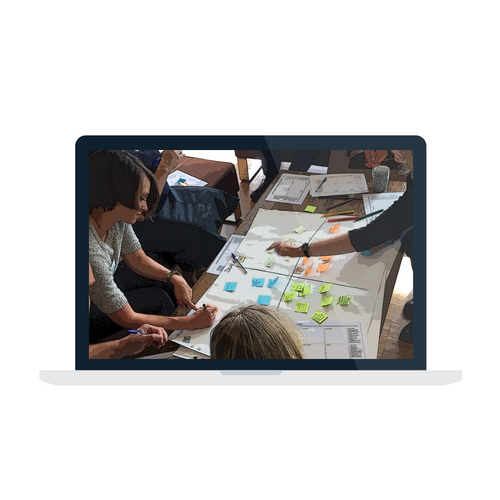
If you have time stop by the PBLR and take a look at their design thinking approach to the question, why does communication with students fail?

why comm fails


Making Google Work Better for You

Standard

Below are a few resources to help you get the most out of Google searching:


Google School Today

Standard

Today’s Google school will cover a quick overview of the similarities and differences between Word and Google docs.


Google Docs Only

Word Only

Easily published to the web

More fonts, addins (Math symbols) and document formatting features

Documents easily edited by multiple people

Track changes

Revision history tracked

Mail merge

Context spell check

 Drawing functionality

Google School 103 Sort Your Files

Standard


This weeks Google school focus is on sorting and sharing files. In 20 minutes we will cover the following:

  • How to sort files (title, size, last modified & last opened)
  • How to find a file by narrowing search results
  • Organize your files (create a folder on the web, move files to a folder)
  • Share a folder


Before this session you should:

      Have set up Google Drive
Know what the cloud is (Google School 101)
Understand how to navigate your Drive (Google School 102- Get to know your drive)