Google Educator Certification

Standard

We have been a Google apps school for over eight years. Officially used Google Drive since Oct. 2013 and Gmail/Calendars for over six months. By now you should be able to navigate in this world comfortably and help your students make appropriate tool and communication workflow choices.  If you feel like you would like a little help, the new Google Educator training system is full of scenarios that are specifically designed for teachers by teachers to help gain skill and understanding about effective use. Such as:

Screen Shot 2016-01-26 at 2.15.23 PM

If you wish to take a certification course please email Liz and she will help get your signed up courtesy of the IT department PD budget;)

Participate in Hour of Code Week

Standard

hour-of-code-logo

Dec. 7th-13th is the official Hour of Code week.  Consider sponsoring an Hour of Code experience in your class. There are thousands of resources for you and your students to choose from, so the prep is very minimal and there is certainly something that can relate to the content you are covering.


Speech to Text Worth Rethinking

Standard

Voice tools are expanding and transforming access to learning in the auditory realm like never before.

The speech to text tool within Google Drive has dramatically improved.  Below are a few ways you might want to consider using it to enhance the ways you give students feedback, or student learning. Speech to text is also useful for students that are auditory learners.

  • Voice comments for feedback-Consider replacing your red pen or written comments for conversational style feedback
  • Voice comments for conversation- Get a thread going between you and your students within the actual document they are working on
  • Provide auditory input for students outside of class-For language learners, pronunciation and word choice is often tricky. By capturing your voice they can replace your voice as many times as necessary, something that in class would be quite awkward for you and the students:)

TRY IT and add your voice comments within this Google doc.


*Screencastify is a solid screencast tool that saves straight to Google drive.
 

Why and How— Short Video Assignments

Standard

HOW

Giving students the choice to use video as a means to display their learning allows them to tap into multiple aspects of creativity and collaboration, but if not confined this choice can become a big time suck.  Consider the following to keep video projects under control:


WHY

Keeping the above in mind, here are some examples of how use of short video assignments tap into transformational learning.

A Review- 10 Quick Search Tips

Standard
  1. Ctrl f  (in most application and generally speaking most websites this combination will present a search box)
  2. Window key and start typing (this will search anything present in Windows 8 including all installed software)
  3. / (in Google Drive online clicking / will automatically place your cursor in the search box)
  4. Search text within PDF’s and Images (Use # 3 above (/) and start typing to search for text within the first 100 pages of any PDF or text document w/i Google drive (or the first 10 pages of any image PDF))
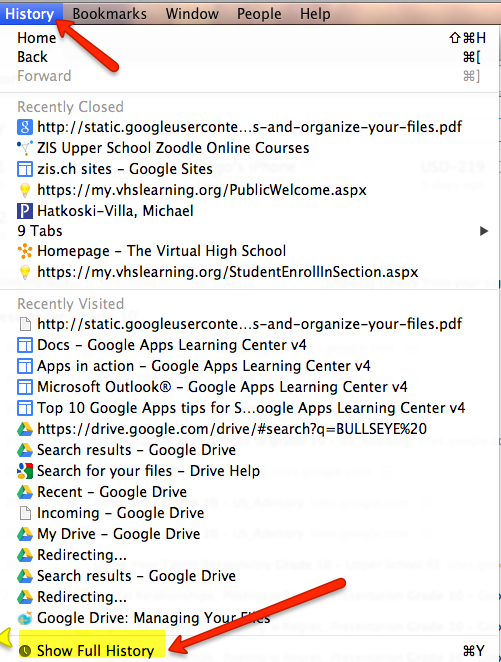
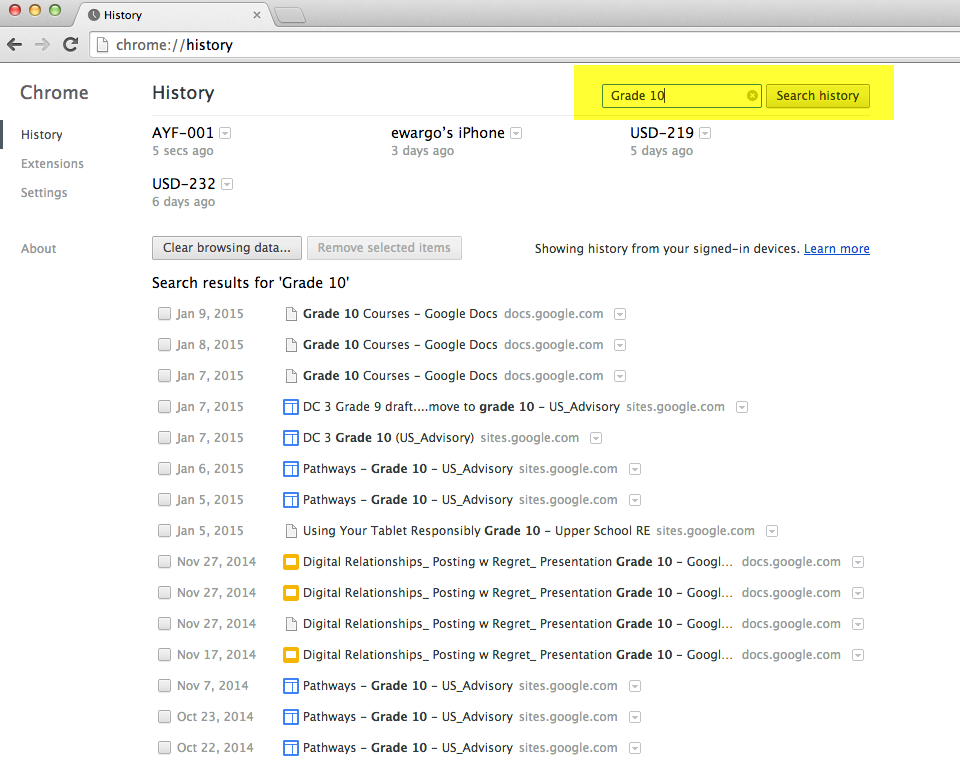
  5. Chrome Search History (Search w/i your Chrome history for quick access to past online work.)  For example I know I need to access something related to Grade 10 that I worked on yesterday.  I would follow these steps:
    – Open Chrome and click on History at the top
    -Click Show Full History to view all search history by device or to search within
  6. Press the Windows logo key Picture of the Windows logo key +D. (To restore minimized windows, press the Windows logo key Picture of the Windows logo key +D again.)

  7. Google search by reading level
  8. Google search in multiple languages
  9. Google search by range
  10. New Google search within a site , or within educational institutions w/ site:edu
    site-specific

Search Tips Continued

Standard

Search tips numbers 6, 7 and 8 are focused on Google search itself.


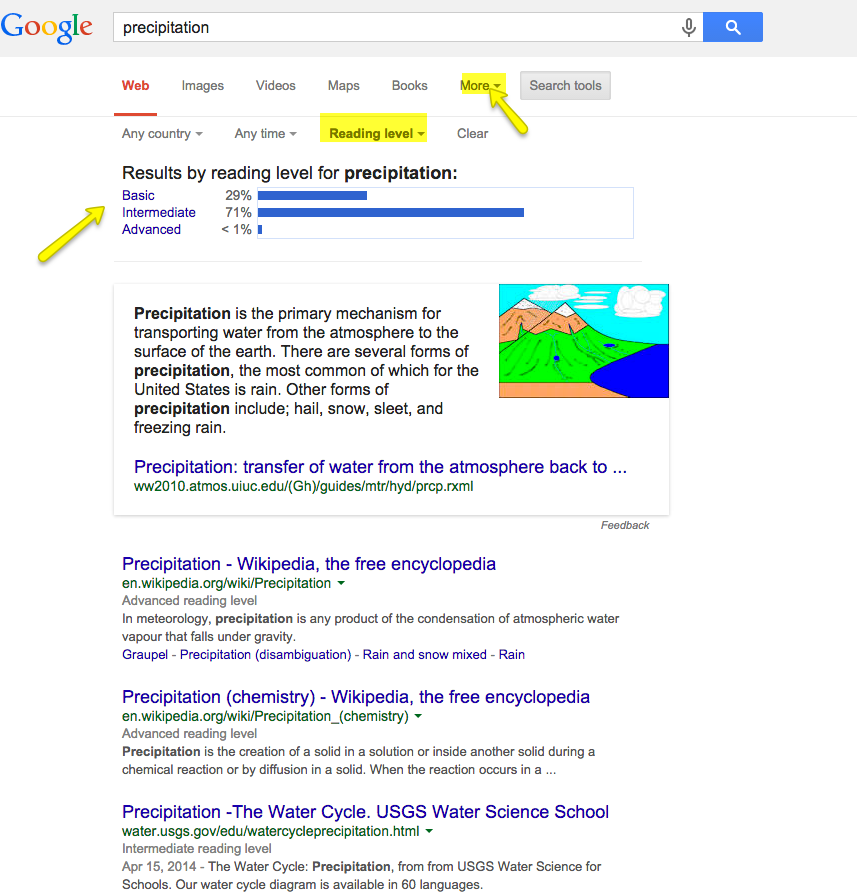
6. Search by reading level
serach by reading level


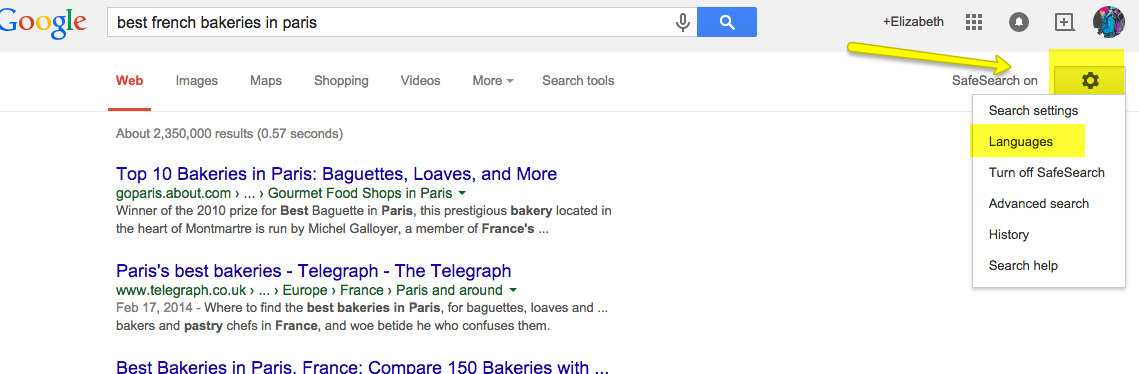
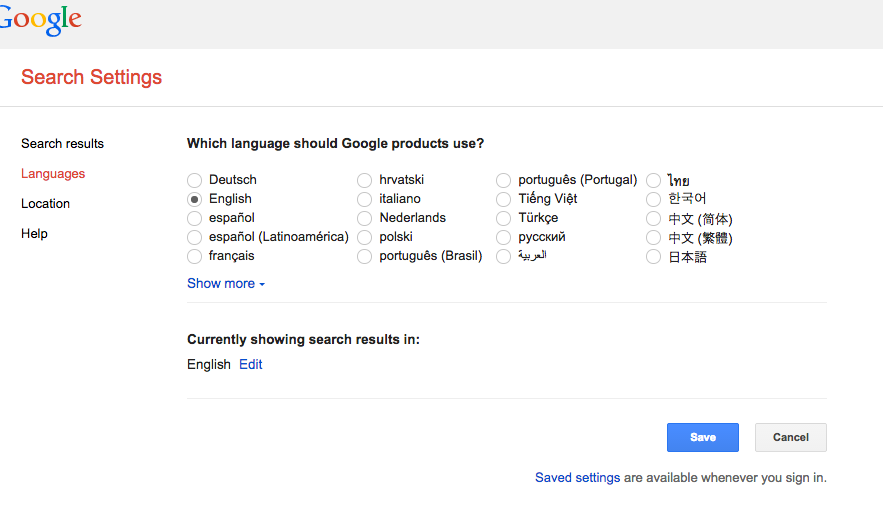
7. Search in multiple languages

languages

search languages


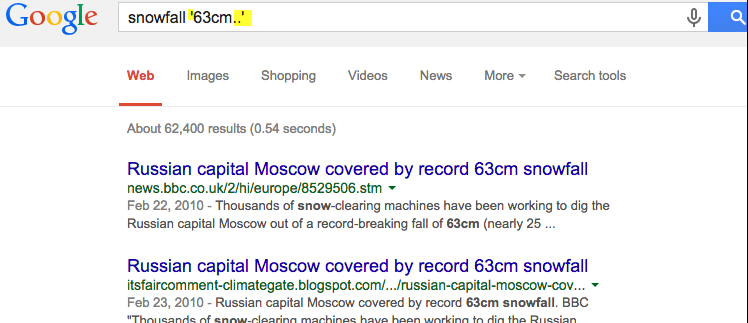
8. Search by a particular range
To specify a particular number range, type .. then a space, then the numbers in your range.  For example snowfall ’63..cm’
RANGE

Search Tips Continued

Standard

Hopefully by now you have the first three tips that I shared last week down.

  1. Ctrl f  (in most application and generally speaking most websites this combination will present a search box)
  2. Window key and start typing (this will search anything present in Windows 8 including all installed software)
  3. / (in Google Drive online clicking / will automatically place your cursor in the search box)

4.  Search text within PDF’s and Images (Use # 3 above (/) and start typing to search for text within the first 100 pages of any PDF or text document w/i Google drive (or the first 10 pages of any image PDF))
Screen Shot 2015-01-13 at 1.38.32 PM

5. Chrome Search History (Search w/i your Chrome history for quick access to past online work.)  For example I know I need to access something related to Grade 10 that I worked on yesterday.  I would follow these steps:
– Open Chrome and click on History at the top
-Click Show Full History to view all search history by device or to search within

history

search within history


Search Quick Tip #1

Standard

As Daniel Goldman (2014) says, we are asking our homo sapien brains to process fifteen times more information today than we did in 1986.  Until spring break I will be populating a list of quick search tips for all sorts of applications so you can get at what you need faster.

  1. Ctrl f  (in most application and generally speaking most websites this combination will present a search box)
  2. Window key and start typing (this will search anything present in Windows 8 including all installed software)
  3. / (in Google Drive online clicking / will automatically place your cursor in the search box)