Google Classroom Notifications

Standard

Questions arose from last weeks PD related to notifications. Below is an overview of notifications and how to turn them off.

By default, you receive an email notification when any of the following events occur:

  • Someone adds a comment to your post.
  • An assignment is created for one of your classes.
  • An assignment is returned to you.
  • One of your teachers changes a grade or posts an announcement.
  • A teacher sends a private comment to you regarding an assignment.

To change your email notifications setting:

  1. Go to classroom.google.com.
  2. At the top, click Menu Menu.Click Menu
  3. Click Settings (you might need to scroll down).Click Settings
  4. Check or uncheck the Send email notifications box.

Road Check: GYST

Standard

Now that we are into the seventh week of school, it’s time to ask…. how is your digital organization holding up? Below is a quick check list to help you gage your progress towards having a workflow that allows you to sustainability manage your IT use, especially with Classroom. Once you complete the audit you will see links to direct you to areas perhaps you could revisit:)

Tips for Using Classroom From Students

Standard

It you have not done so already (in last weeks TT) please fill out this form. Below are some likes and dislikes as well as tips based on the results collected last week from students and teachers:

What students like and do not like about how teachers are using classroom part 1 (more to come including face to face forums w/ students):

  • Students LIKE:
    • When teachers ask them for input in how the space is being used
    • When teachers understand the implications of their choices (e.g. choosing to present information that is many many clicks away)
    • Being able to access assignments within two clicks or less
    • Having items that will be held to the Late Work Policy to be assigned within the stream with corresponding due dates down to the exact time (not just date)
    • When teachers present organized information consistently. They like getting used to being able to find their way around
  • Students DO NOT LIKE:
    • Having to click through multiple layers to find what is due when. They really really dislike when the only place they can find homework is within a SMART Notebook file that needs to be downloaded, opened and sifted through
    • When items are assigned to them after the class period has ended, but are due before the next class period
    • When items that are assigned are deleted even after they are due.
    • When items do not have a clear due date and time, or when this information is changed multiple times
    • Being assigned items in the stream that are reoccurring class routines (e.g. bring your tablet to class, bring your book etc.).  If you need to communicate this information outside of class, they would like it to be in the announcements. This information could also be created as long events in the class calendar directly within Google calendar: warning events created directly in Google calendar do not appear in Classroom

Tip: turn off email notifications

By default, you receive an email notification when either event occurs:

  • Someone adds a comment to your post
  • A private comment is posted on a student’s assignment or question submission

You can change whether you receive email notifications.

Scroll down and click Settings.

Click Settings

Tip: Understand the assignment workflow 

Classroom weaves together Google Docs, Drive, and Gmail so teachers can create and collect assignments paperlessly. Within Classroom, teachers can create an assignment, use it in multiple classes, and choose how students complete the assignment (for example, whether each student receives an individual copy or all students work in the same copy of the assignment). The teacher can track who has completed the assignment and who hasn’t, and provide feedback to individual students.

Here’s an example of the assignment flow between a teacher and a student:

Teacher

Student

Teacher creates an assignment with an attached Google Doc.

Student edits the copy of the homework and turns it in.

Teacher grades the assignment.

Student reviews and edits the copy of the homework.
  1. Teacher selects the option to create a copy of the Google Doc for each student and sends the assignment to the class.
  2. After turning in an assignment, the student loses edit access to the Doc but remains a viewer.
  3. The teacher edits the Doc to grade the assignment, returns it to the student, and editing access is again transferred to the student.

Both the teacher and students can see a list of pending and completed class assignments. The teacher can see all of the grades for an assignment, and students can see their own grades for completed assignments.

Chrome Extensions

Standard

Here are my favorite extensions lately:

Classroom for sharing directly to your courses.
Scholar, lookup scholarly articles while you browse the web
SMART Amp (free trial) for sharing notebook style information directly to your students in Google Classroom
Goo.gl link shortener
Readablity for a simplified reading experience on the web
Balsamiq (free trial) to mock up a website or app (this is fantastic for student projects in the prototype phase if the end product will be a webspace)
PowToons animated videos and presentations
Datum Equation Editor

Timing is Everything

Standard

When communicating in general, timing factors into how your message is received. Take this digital and time can mean the difference between your message being seen at all and consumed the way you ideally want it to. When communicating with students, the schedule feature in Google Classroom can support directing students attention. Some examples are below:

-Schedule an announcement or assignment to post during a specific time when your class is in session. This helps students see it on top as their first message in the stream, and also helps from you interrupting your fellow colleagues when you are connecting with students during their class on your prep period.

Classroom scheduling of posts

-Purposeful place the due dates of assignments or questions when you are prepared to enter information into PowerTeacher Gradebook and follow up with the Late Work Policy. This will prompt the students to see work that is late indicted as late in red on their to do list.

New Features in Google Classroom

Standard

As of mid August the following in now possible in Classroom:

  • Guardian summaries: Teachers and administrators can invite guardians to sign up for email summaries to keep up with their students. Guardians can choose how often to get a summary—daily or weekly—and can unsubscribe at any time. Summaries include a student’s missing or upcoming work as well as new announcements and questions posted by teachers in the class stream.

  • Topics for stream organization: Teachers can organize the class stream by adding topics to posts. Teachers and students can filter the stream by topic.

  • Teachers and students can preview materials attached to assignments or posts.

  • Teachers and students can view email notifications by class using Inbox by Gmail. Important updates from recent emails are highlighted in each bundle.

  • Teachers can add a subject when creating a class. (What’s New in Classroom Blog)

Refinement Challenge Week 8

Standard

Click here to see the post about how it works and the previous weeks aims of inquiry or here for last weeks challenge. This weeks series of questions is aimed at inquiry related to assessment:

Assessment

  • Assessment Alignment. Are all assessments aligned cognitively with standards, learning goals, instruction, and learning activities?
    • Yes / No / Somewhat
  • Authentic Assessment. Are students creating real-world products or performances?
    • Yes / No / Somewhat
  • Assessment Technology. Are digital technologies being used to facilitate the assessment process?
    • Yes / No / Somewhat

Discipline-Specific Inquiry – April

Authenticity/Relevancy- April

Deeper Thinking- April

Personalization-May

Agency-May

Communication-May 

Collaboration-May

Assessment-May

Google Classroom PD

Standard

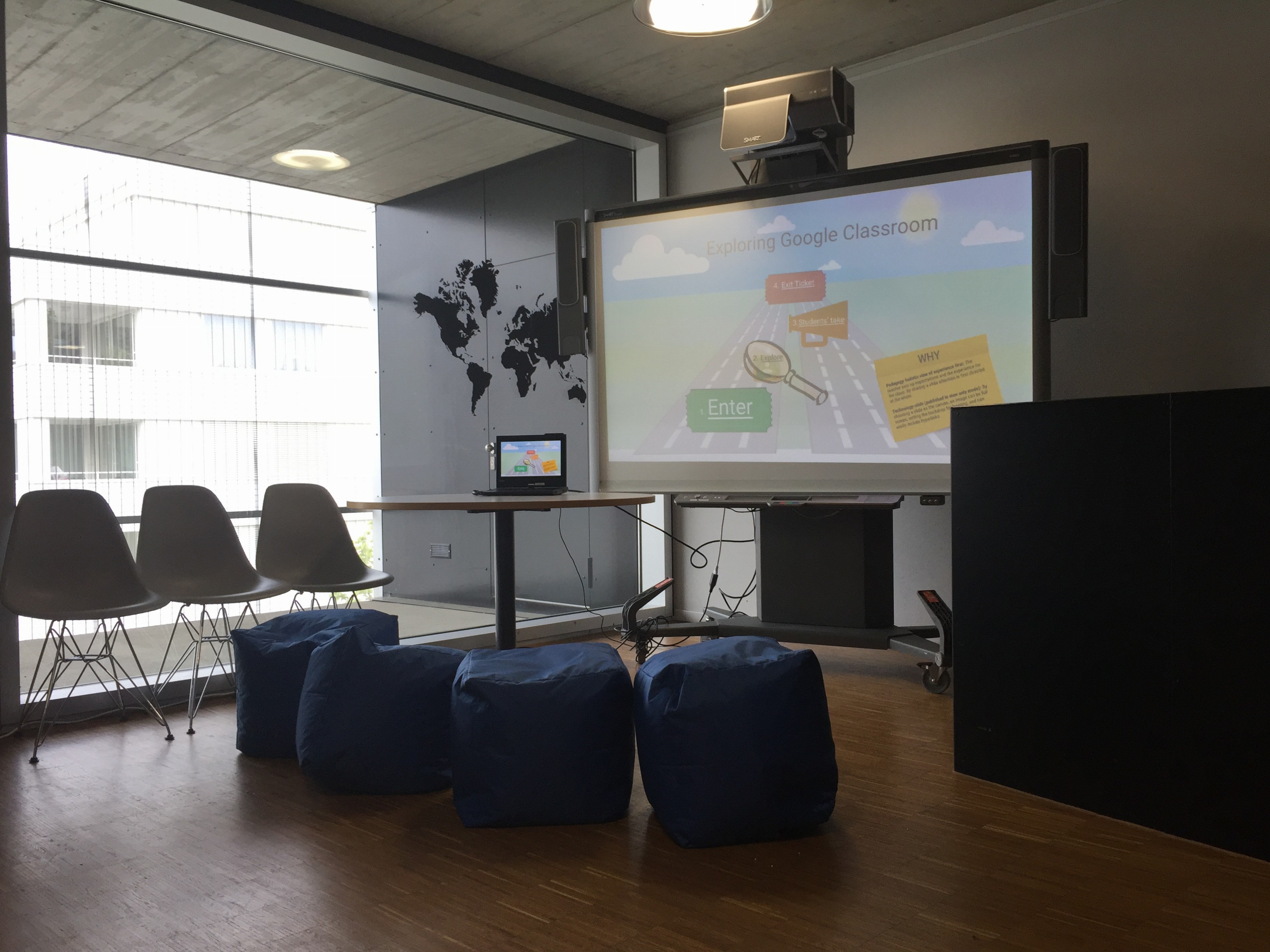
The explore Google Classroom station is now ready:) File_000It will be up for the month of May to help you get ready for the change communicated last week. Stop by to play, explore and learn.


If you have indicated you would like specific help (one-on-one) watch out for an email from Liz later today. The following group sessions will run next week, please RSVP below:


Below is an interactive template you can explore on your own, but it’s recommended that you explore classroom with a partner to be learn both the teacher and student perspectives. If you need a student to help you explore some are on hand ready and excited to help you.