4 Things You Can Do NOW to Organize Your Google Drive

Standard

All of us organize our Google Drive a bit differently, however there are four simple methods we can embrace to make our Drives easier to navigate.

  1. Clean, Clear Folder Structure:
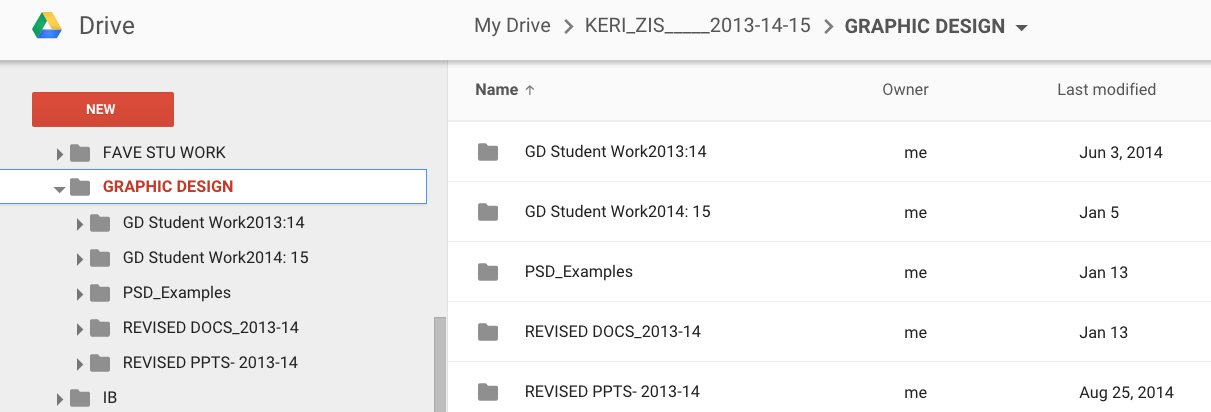
    *This facet of organization is very specific to each individual.  Here are three very different examples of how faculty members approach folder structures:The first example showcases a topic as the top level folder.  Subfolders are then broken down into specific type of resources: (1) student work, and (2) teacher “work” broken down by file type (docs, slides and in this teachers case a specific software used for this course).
    Example of organization from Keri
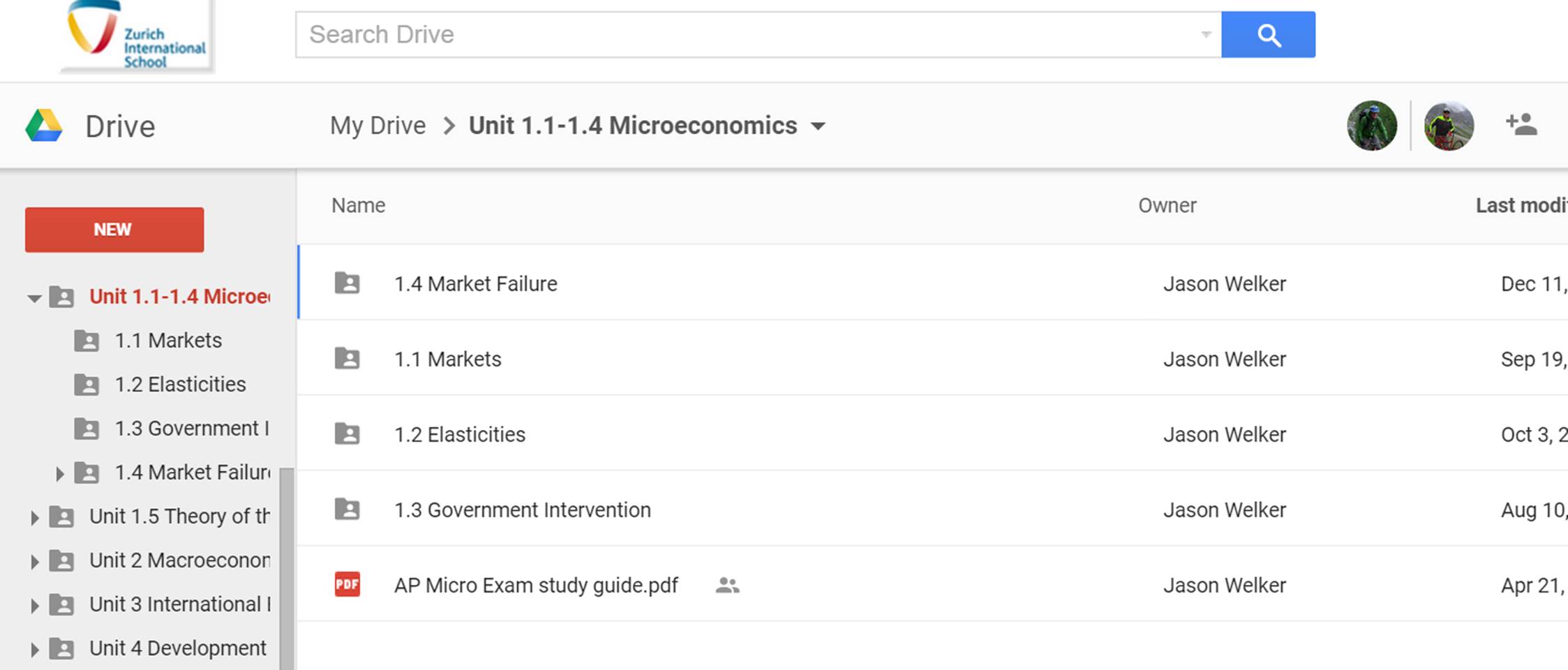
    The second example showcases the use of  numbers associated with units.  This method also allows you to order items when Googles alphabetized method is working against you:
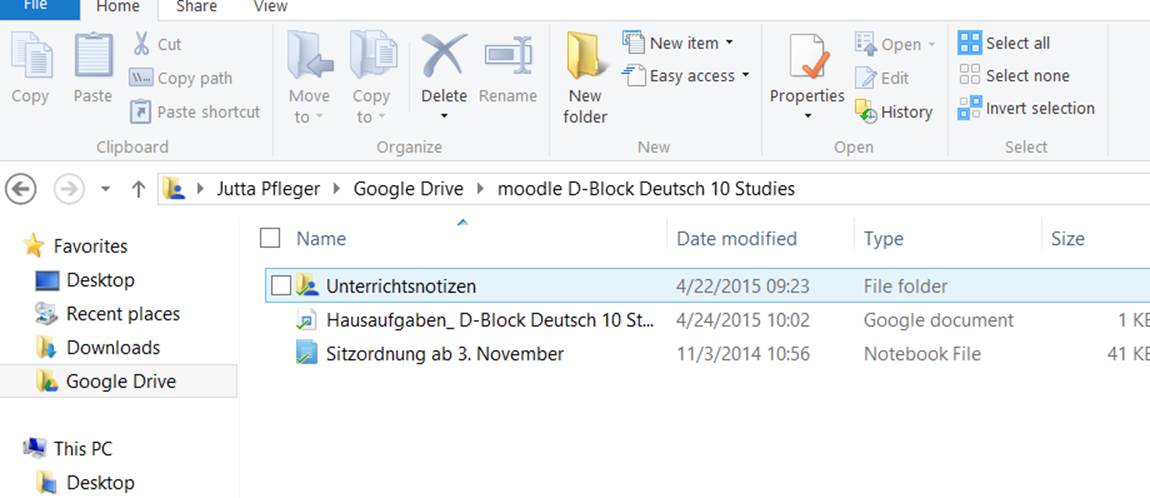
    unit exampleThe third example showcases the power of a folder structure that embraces top level folders that are shared with students. This individual has clearly structured top level folders for each class to share work with students in an organized fashion.  In addition, clearly labeling folders with the word Moodle let’s both the student and teacher know that the folder structure is linked into their Moodle course.
    Shared with student online viewshared with students desktop app view


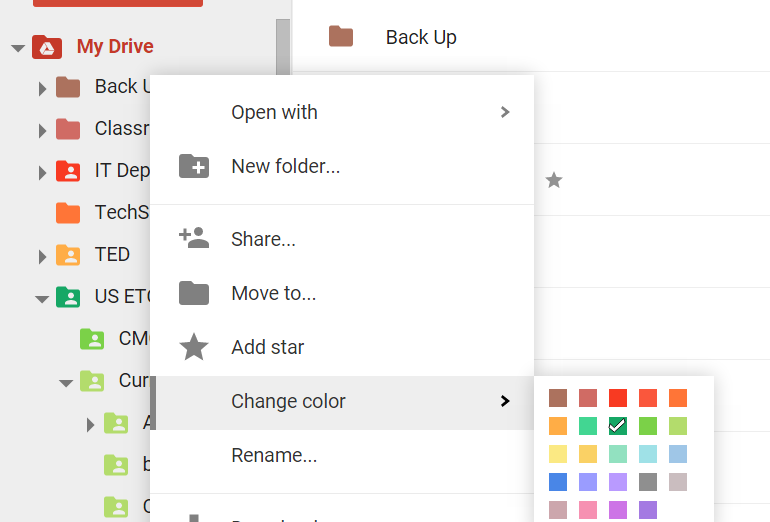
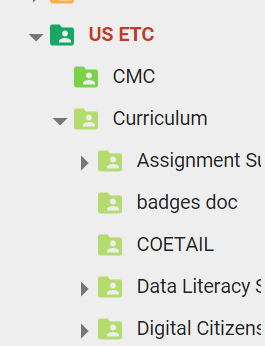
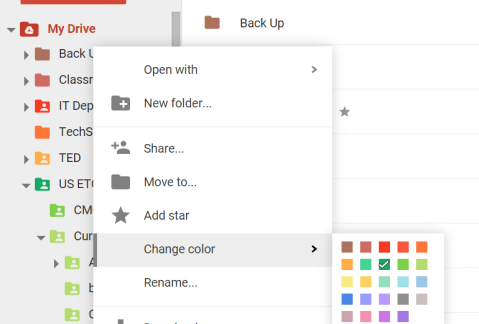
2. Use different colors  to quickly distinguish folders from each other.
 color changecolor


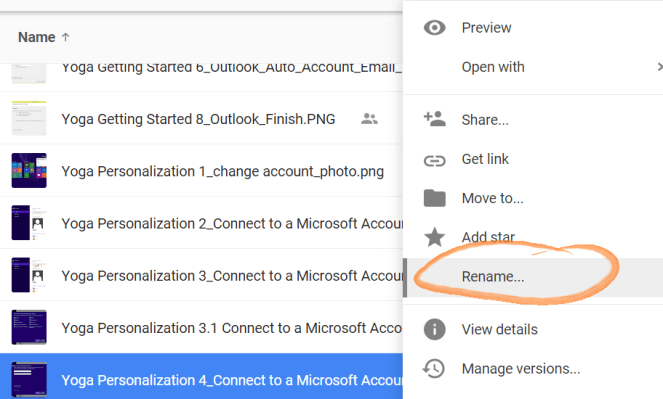
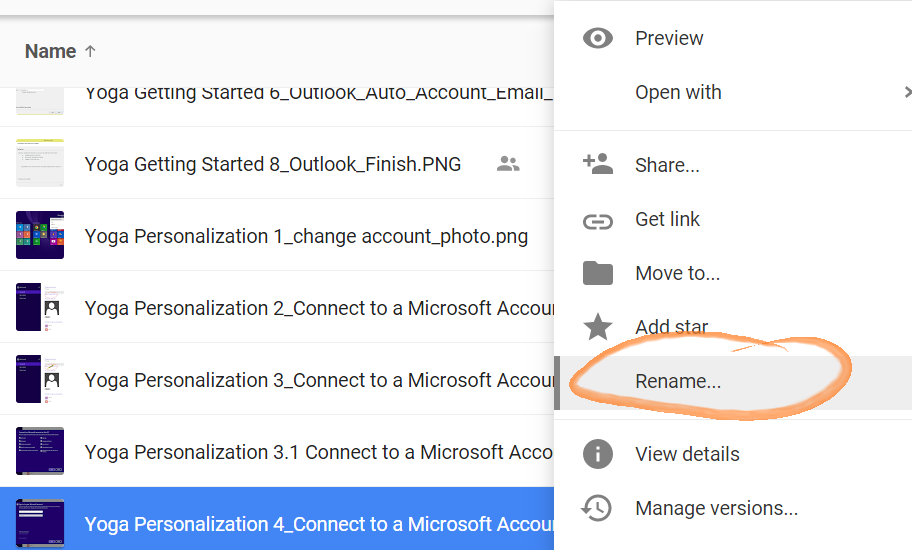
3. Standardize your naming conventions and embrace numbers to best view items sequentially.

Standardize file namesrename

4. Organize items shared with you

Items shared with you can be difficult to locate because these items are not automatically added to your My Drive folder. Using the Add to My Drive function allows you to organize items shared with you.  If the naming conventions of the items shared with you conflict with your own approach to organization consider creating a folder that does and adding the shared file to this folder.

Add to My Drive


A Review- 10 Quick Search Tips

Standard
  1. Ctrl f  (in most application and generally speaking most websites this combination will present a search box)
  2. Window key and start typing (this will search anything present in Windows 8 including all installed software)
  3. / (in Google Drive online clicking / will automatically place your cursor in the search box)
  4. Search text within PDF’s and Images (Use # 3 above (/) and start typing to search for text within the first 100 pages of any PDF or text document w/i Google drive (or the first 10 pages of any image PDF))
  5. Chrome Search History (Search w/i your Chrome history for quick access to past online work.)  For example I know I need to access something related to Grade 10 that I worked on yesterday.  I would follow these steps:
    – Open Chrome and click on History at the top
    -Click Show Full History to view all search history by device or to search within
  6. Press the Windows logo key Picture of the Windows logo key +D. (To restore minimized windows, press the Windows logo key Picture of the Windows logo key +D again.)
  7. Google search by reading level
  8. Google search in multiple languages
  9. Google search by range
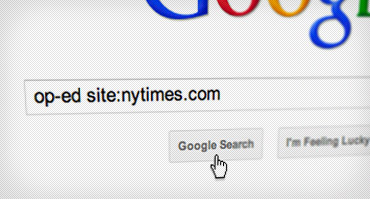
  10. New Google search within a site , or within educational institutions w/ site:edu
    site-specific

Handout Copies of Google Files Easily

Standard

Did you know that you can simply hand out copies of Google files with one link? Here is how:


  1. Create a Google file (doc/sheet/slides/draw)
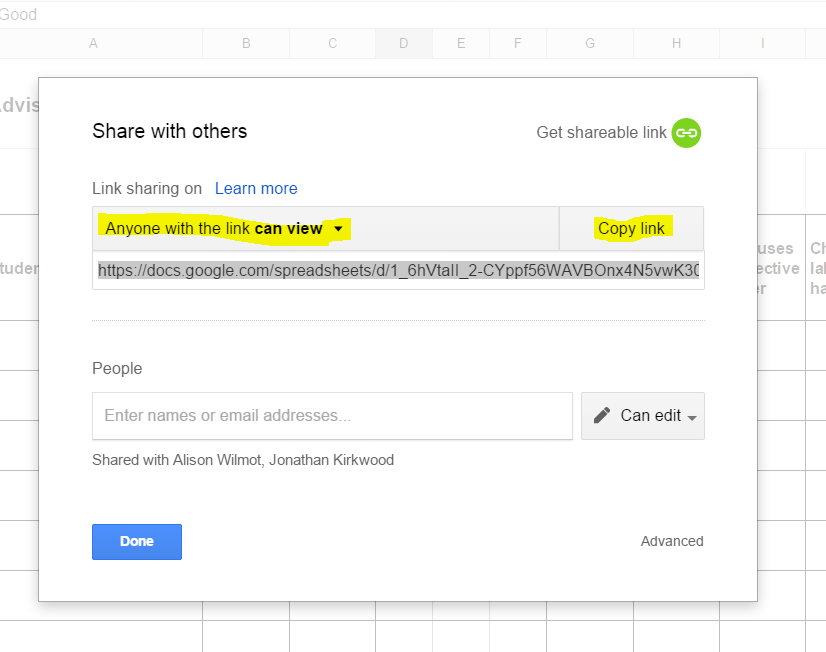
  2. Click the blue share button and make it visible by anyone with the link
    sharable link
  3. Modify the url (link) by deleting the portion after the backslash (/) https://docs.google.com/spreadsheets/d/1_6hVtaII_2-CYppf56WAVBOnx4N5vwK306n5ovYM-9U/edit?usp=sharing
  4. Replace the deleted text with the word copy
    https://docs.google.com/a/zis.ch/spreadsheet/ccc?key=0AiqrAI5UxSJNdEpaa3FtaFNXOGdUWmQ2RDl5di1mWWc/copy 
  5. Pass out the link and those receiving it will get this prompt to make their own copy
  6. make a new copy

Digital Spring Cleaning

Standard

As you get ready to transition devices, the less you have to think about the better! Here is a suggestion list of areas you might want to look at:

  • Classwork-  *especially the Special Projects folder
  • Tablet-  Desktop Downloads, My Documents, My Pictures, My Music, and My Videos folders
  • OneNote *more information about how to back up your OneNote will be in next weeks announcements
  • iTunes library items

Other items worth considering cleaning up:

  • Google Drive
  • Digital Portfolio- archive and adjust categories
  • Internet browser- bookmarks and extensions
  • Unused apps on your SMART phone
  • Social networks-  unlike and unfollow to clear your feeds


Blended Learning, Yet Another Look

Standard

Last night your Social Studies colleagues took time to deconstruct the communication side of blended learning.


If you have time stop by the PBLR and take a look at their design thinking approach to the question, why does communication with students fail?

why comm fails


Evernote Conversation

Standard

What is Evernote?


On February 4th Ali and I will be meeting with the Switzerland rep for Evernote to explore the possibilities for us at ZIS.  Please send your questions or ideas for use to us by the end of the day on Feb. 3rd.