I Do Not Like Green Eggs and SPAM

Standard

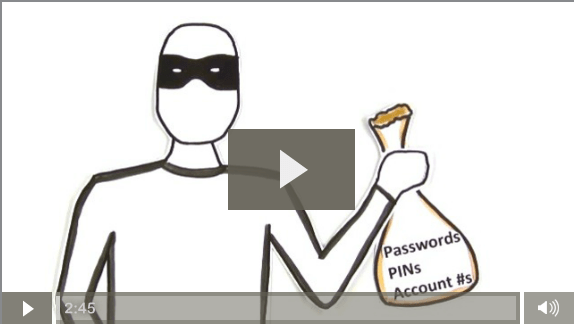
Nobody likes SPAM, dealing with it is tricky, and there certainly is a lot of it!

Global spam trends
By now you should know:

  1. Where your messages go in gmail,
  2. How to find an email using Gmail’s search (*pay particular attention to this video at 1:06 where it explains how to include spam and trash in searches),
  3. How to block unwanted messages.
  4. How to access your spam folder and help your Gmail learn what legitimate mail is not spam.
  5. How to identify a message that is SPAM
    Click on the quiz below and see if you can identify all the markers of a spam message.
    Capture

Because this is different for every individual, please continue to periodically check your spam folder. Check out this resource to learn why certain type of messages end of in your spam folder and what you can do about it.


Evolution of Edtech at the Upper School- Update

Standard

This year we have a lot of exploration to be done related to educational technology shifts.  All exploration is aimed at streamlining communication and ensuring an agile digital ecosystem, so we can focus on the real goods….forward thinking pedagogy!

Starting in June some of our colleagues (thx- Adrian, Ali, Claudia S, Diya, Geoff, Ian, Jason, Marie & Will) have explored Google Classroom to support blended learning in one or more of their classes.  Their efforts have allowed this platform to be explored in our digital ecosystem producing the following findings.

Our next steps is to continue with early adoption of Google Classroom and start piloting SMART amp.  SMART amp is a cloud based version of SMART notebook that saves automatically in your Google Drive.

If you are interested in piloting SMART amp or adopting Google Classroom please email Liz before the end of this week (Friday 25th).
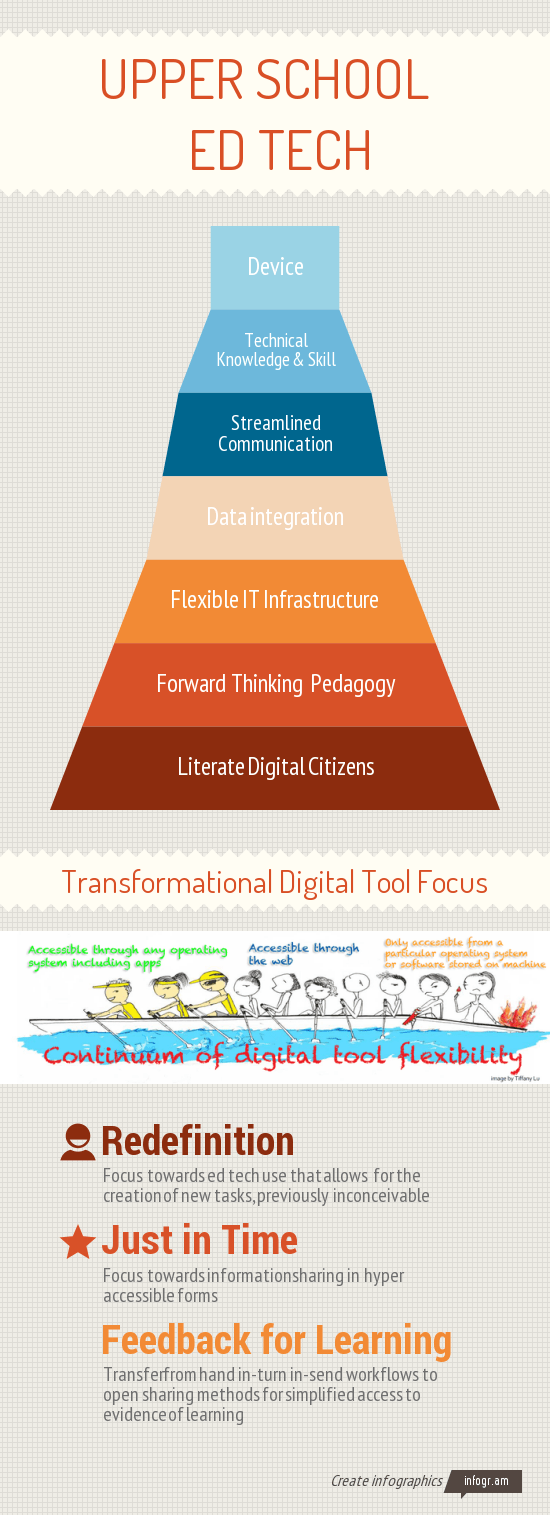
US Ed Tech Infographic 14_15 focus


To the left is the graphic that summarizes the findings from the 1-to-1 device cycle three research that points to all things beyond the device.  Below is a summary of our Upper School ed tech evolution over the past four years.

2011-12
1-to-1 cycle 2 year 1 (x220), iPad pilot , scaling screencasting and digital portfolios, and desktop research.

2012-13
Start of 1-to-1 device cycle three research,  SMART board/projector research, mobile phone wifi connection, and start of PBL work w/ Suzie Boss

2013-14
1-to-1 device cycle three research, continued PBL work w/ Suzie- including the fail festival, and Moodle upgrade

2014-15
1-to-1 cycle 3 year 1 (Yoga), Suzie Boss PBL work, Fine Arts digital ecosystem research, Gmail, and retirement of network drives (Classwork)

2015-16
Start of cycle 3 (iMac labs for visual arts), Google Classroom and SMART amp pilots, continued work with Suzie Boss, and start of 1-to-1 cycle 4 research


4 Things You Can Do NOW to Organize Your Google Drive

Standard

All of us organize our Google Drive a bit differently, however there are four simple methods we can embrace to make our Drives easier to navigate.

  1. Clean, Clear Folder Structure:
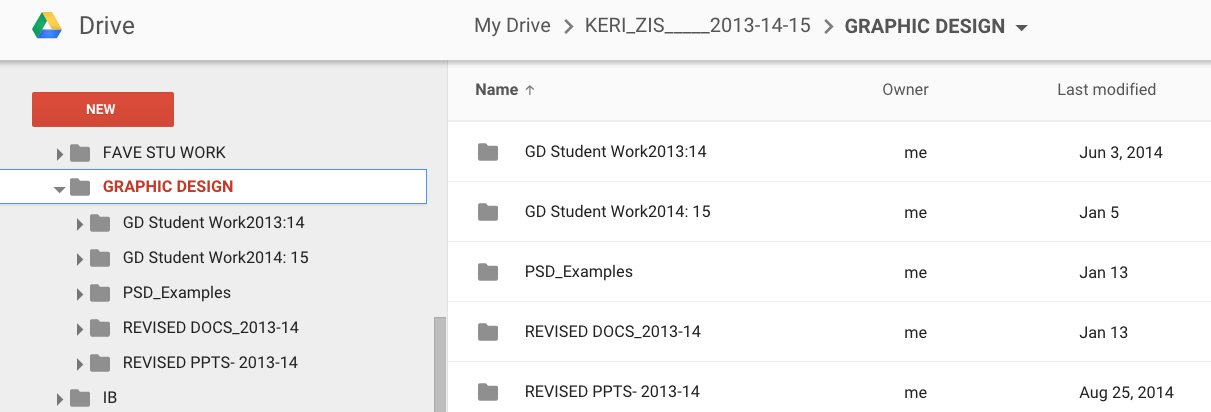
    *This facet of organization is very specific to each individual.  Here are three very different examples of how faculty members approach folder structures:The first example showcases a topic as the top level folder.  Subfolders are then broken down into specific type of resources: (1) student work, and (2) teacher “work” broken down by file type (docs, slides and in this teachers case a specific software used for this course).
    Example of organization from Keri
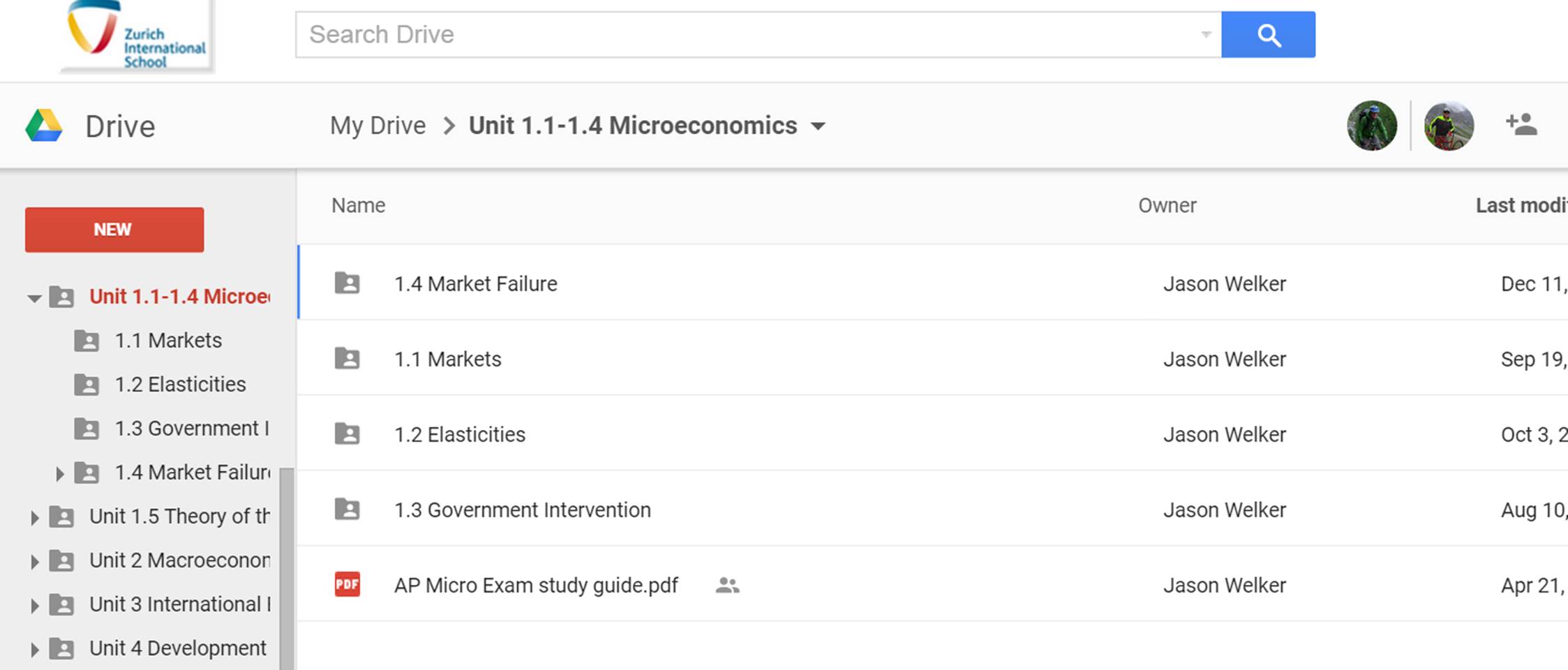
    The second example showcases the use of  numbers associated with units.  This method also allows you to order items when Googles alphabetized method is working against you:
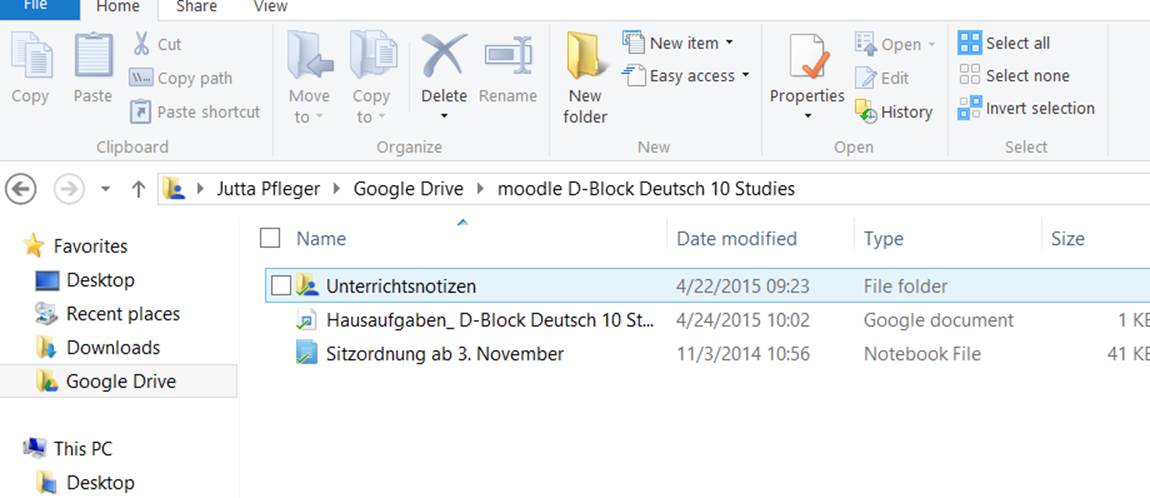
    unit exampleThe third example showcases the power of a folder structure that embraces top level folders that are shared with students. This individual has clearly structured top level folders for each class to share work with students in an organized fashion.  In addition, clearly labeling folders with the word Moodle let’s both the student and teacher know that the folder structure is linked into their Moodle course.
    Shared with student online viewshared with students desktop app view


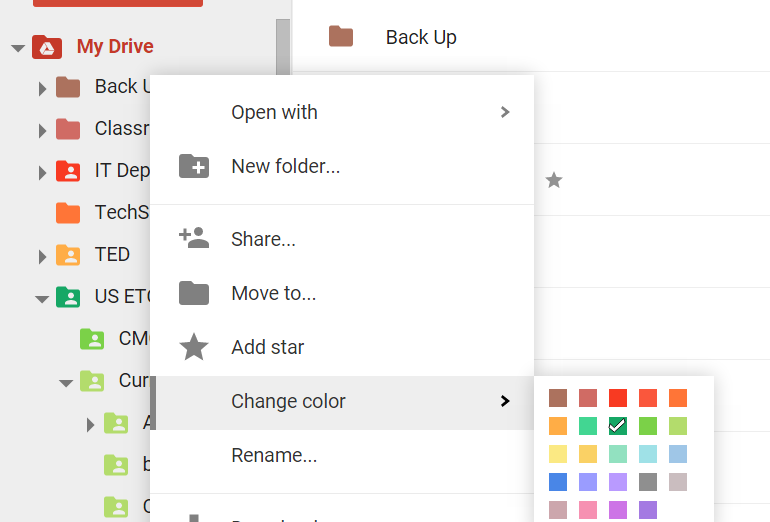
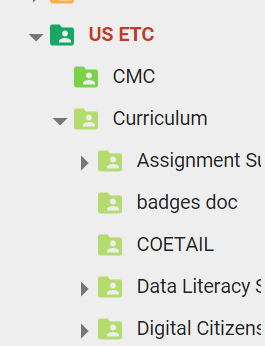
2. Use different colors  to quickly distinguish folders from each other.
 color changecolor


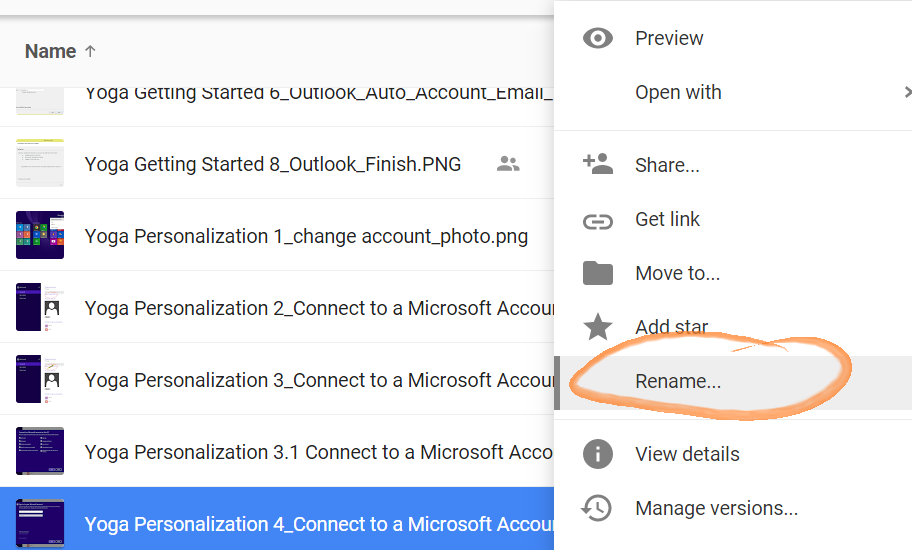
3. Standardize your naming conventions and embrace numbers to best view items sequentially.
Standardize file namesrename

4. Organize items shared with you

Items shared with you can be difficult to locate because these items are not automatically added to your My Drive folder. Using the Add to My Drive function allows you to organize items shared with you.  If the naming conventions of the items shared with you conflict with your own approach to organization consider creating a folder that does and adding the shared file to this folder.

Add to My Drive


Leverage Vocab.com

Standard

Esther, Mary Ann and our English colleagues are using Vocab.com with students, and you can too!

To access vocab.com, make sure you are signed in to your school Google account  (Chrome works best) and go to vocab.com in any of the following three ways:

 Through Moodle’s left navigation bar

 Screen Shot 2015-03-17 at 6.01.02 AM

Directly in Google Apps
2015-03-17_0559

 Straight through the url vocab.com

Screen Shot 2015-03-17 at 6.01.29 AM


You can make your own vocabulary lists based on subject specific vocabulary and share them with your students. Talk to Esther, Liz or Ian if you want a brief tutorial, or read the instructions on the website itself.

A Review- 10 Quick Search Tips

Standard
  1. Ctrl f  (in most application and generally speaking most websites this combination will present a search box)
  2. Window key and start typing (this will search anything present in Windows 8 including all installed software)
  3. / (in Google Drive online clicking / will automatically place your cursor in the search box)
  4. Search text within PDF’s and Images (Use # 3 above (/) and start typing to search for text within the first 100 pages of any PDF or text document w/i Google drive (or the first 10 pages of any image PDF))
  5. Chrome Search History (Search w/i your Chrome history for quick access to past online work.)  For example I know I need to access something related to Grade 10 that I worked on yesterday.  I would follow these steps:
    – Open Chrome and click on History at the top
    -Click Show Full History to view all search history by device or to search within
  6. Press the Windows logo key Picture of the Windows logo key +D. (To restore minimized windows, press the Windows logo key Picture of the Windows logo key +D again.)
  7. Google search by reading level
  8. Google search in multiple languages
  9. Google search by range
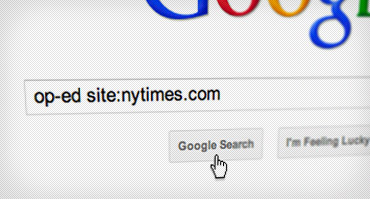
  10. New Google search within a site , or within educational institutions w/ site:edu
    site-specific